
Docs
API and Bot models
Configure API providers, choose each Bot’s models and verify its model preset.
Continue from Install DeepSeekBot. This guide applies to the public deepseekbot package on DSH 0.2.1-rc.2 (screenshots were captured on DSH 0.2.0-rc.1). Configure the API provider first, then choose models for each Bot. Multiple Bots can use one provider. Screenshots show the Chinese UI; the captions identify the corresponding controls.
1. Configure a provider in DSH
Open Settings → Models at the bottom left. Edit an existing provider, or choose Add model provider.
- Third-party provider: choose a service from the built-in catalog, enter its API key, and save. A key supplied by the launch environment appears read-only and is managed in that environment.
- Custom model API: for compatible gateways or self-hosted services, fill in the fields below, add at least one model, and choose Create provider.
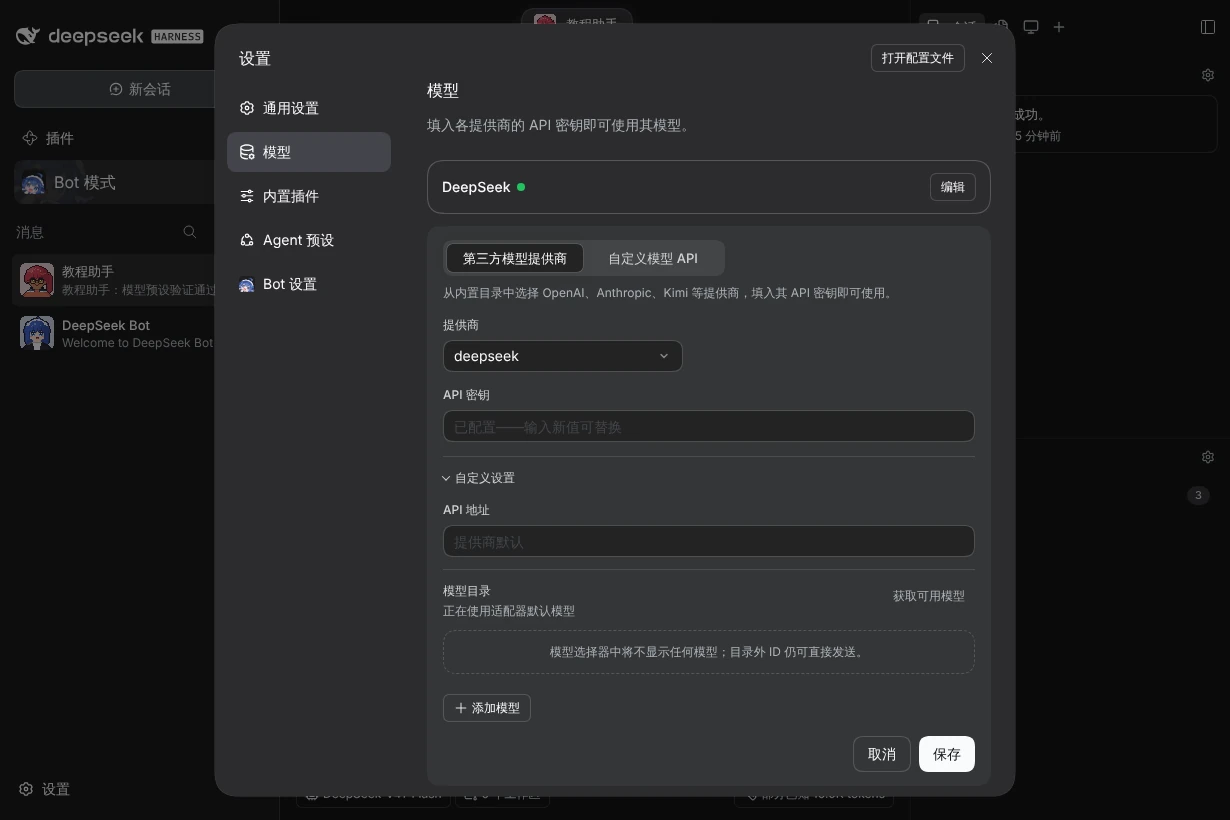
| Field | Value / purpose |
|---|---|
| Provider | The actual service from the built-in catalog; selects its adapter and default model catalog. |
| Provider ID | A unique custom provider identifier starting with a lowercase letter, such as acme-gateway. Routes use this ID, not the display name. |
| Display name | Your recognizable name for the provider. |
| API URL | The service's base URL, such as the form's https://gateway.example/v1. Leave a built-in provider's override empty to use its default. |
| API protocol | Match the endpoint: OpenAI Chat Completions, OpenAI Responses, or Anthropic Messages. |
| API key | The service credential. Enter it in DSH's credentials form, not a Bot persona or chat message. |
| Fetch available models | Retrieve the service's model catalog, if its API and your credentials support this. Otherwise add the documented model ID manually. |
| Model ID | The exact identifier sent to the service. |
| Model display name | The readable name in the selector; does not change the ID. |
| Model options → Context window | The model's supported context size; use its specification and a supported format such as 256K. |
| Model options → Maximum output tokens | The model's output limit, such as 32K; not a promise of that much output every turn. |
| Model options → Input types | Text is required. Enable images only when the model supports them. |
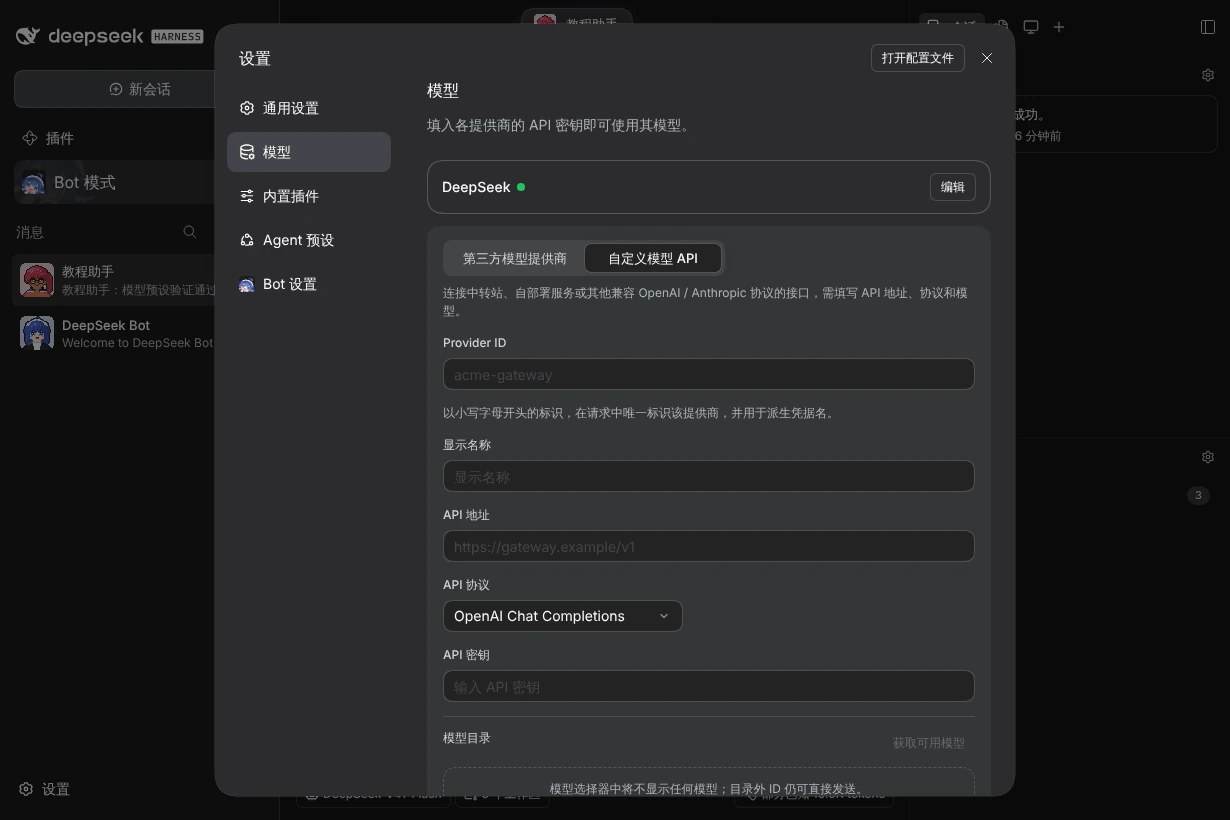
The catalog provider's Custom settings override its API URL and model list. With no catalog entries, DSH says the selector will show no models. Bot model presets also need an available catalog entry. Saving the provider alone does not finish Bot model selection.
2. Open the target Bot's Model entry
Close Settings, enter Bot mode, and open the Bot's DM. In the Channel sidebar on the right, expand Model and click the Main model card to open the Model dialog. See Model for what each card shows.
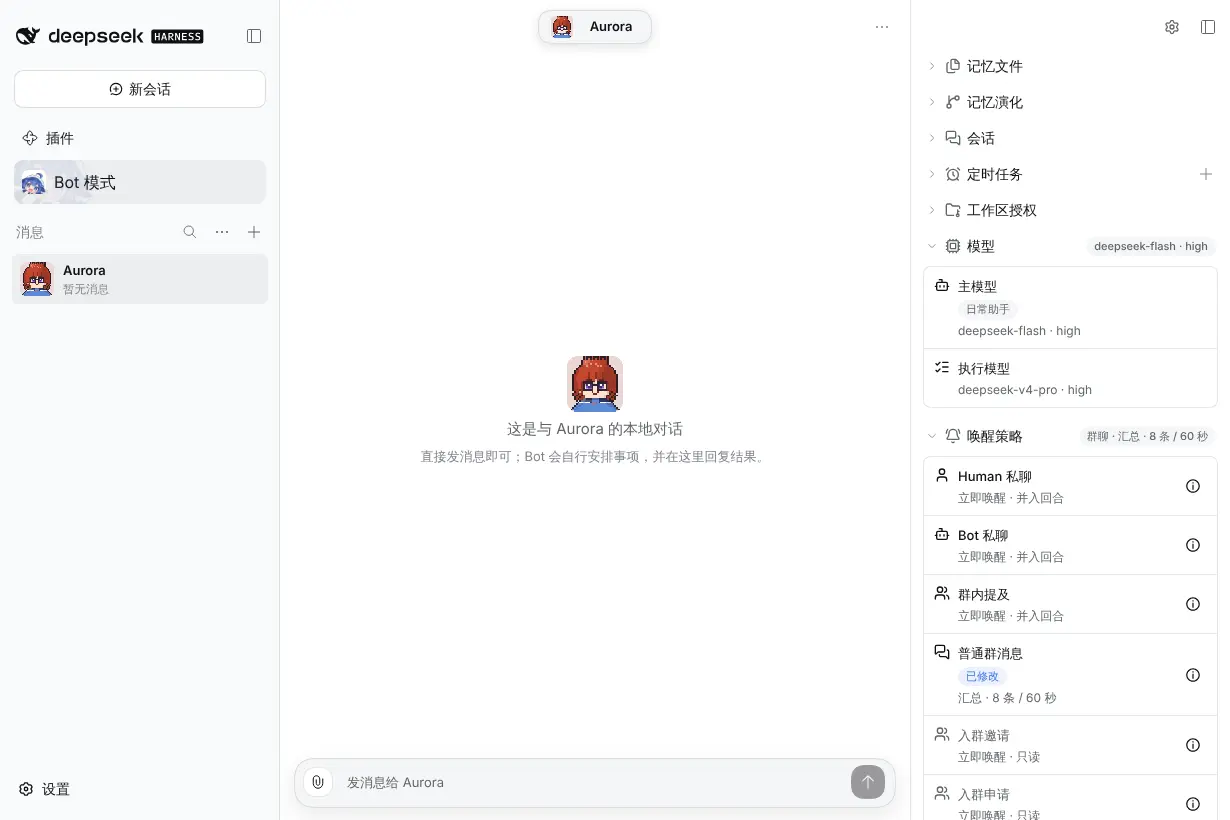
This page configures one Bot. Global Bot settings contain appearance, sorting, and concurrency options. DSH Agent presets choose tools and working style; they are separate from Bot model presets.
3. Choose the models and save
Pick models directly in the dialog; no preset is needed.
| Field / action | Purpose |
|---|---|
| Main model | The Bot's model for receiving messages, coordinating work, and everyday conversation. Type to filter the list. |
| Task model | The default for delegated tasks when no other model is chosen. |
| Reasoning effort | An effort supported by the selected model. Default leaves it unspecified. Models may offer different options. |
| Advanced | The Simple / Advanced switch beside Task model. Simple, the default, is one model and one effort. Advanced replaces that picker with a list of model cards: add models at the top, tick the efforts each allows, choose its default effort, mark one card as the default and write an optional note on when to use each model. Switching back to Simple saves one model again. The Orchestrator reads the notes when it picks a model for a new task, so it can use a cheaper model where it fits. |
| Save | Save these settings for this Bot. They apply from the next turn. |
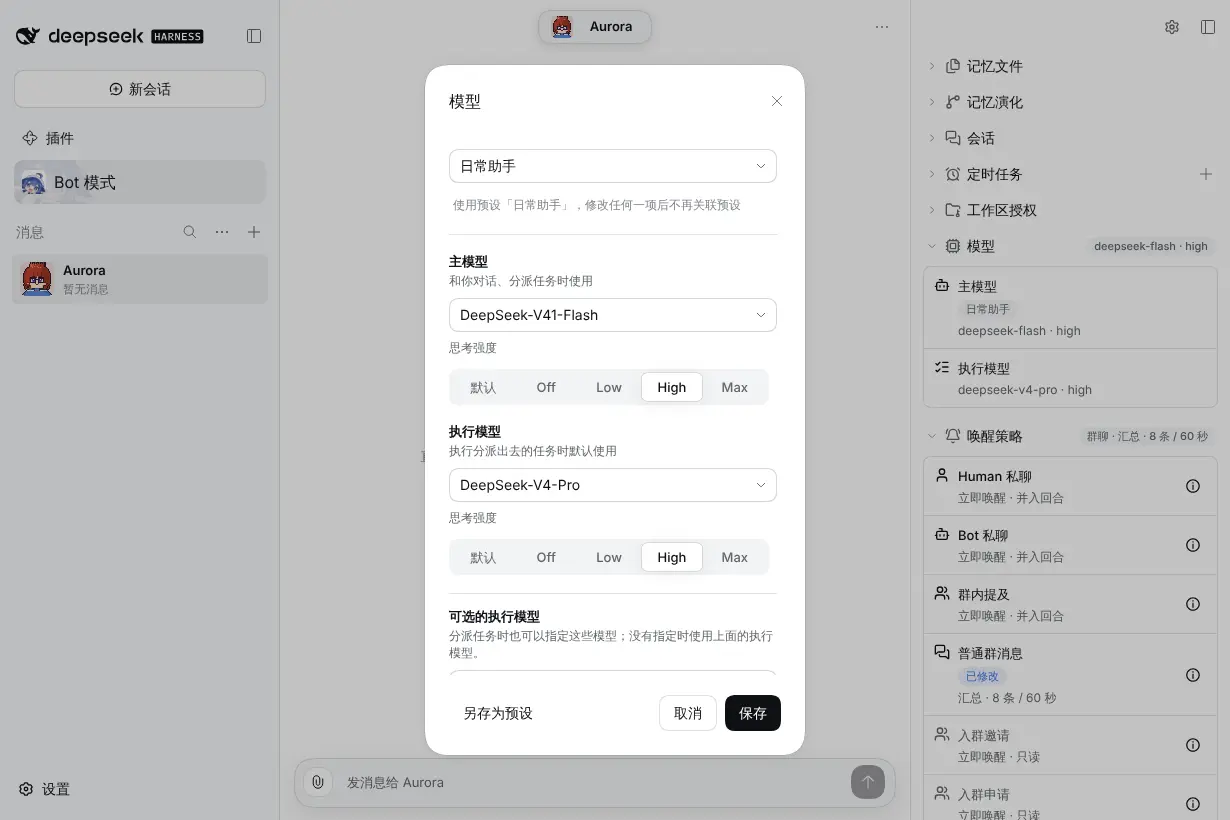
After saving, the two sidebar cards show the expected model · effort. Each Bot can use a different combination.
4. Use presets (optional)
A preset is a reusable set of model settings, handy when several Bots share the same models.
| Action | Scope |
|---|---|
| Save as preset | Save the dialog's current settings as a new preset and make this Bot use it. |
| Fill from a preset | Fill the dialog from a saved preset; Save applies it to this Bot. |
| Change anything | This Bot is no longer linked to the preset and saves your settings; the preset is kept. |
Task model selection is fixed when the task is created. Changing a default does not reconfigure existing tasks or rerun a response already being generated.
5. Verify the actual model
Return to chat and send a short message. After a reply, check Token usage in the Bot's Profile (chat header name/avatar → View details) and switch it to By model. For a specific conversation, open its DSH Session from Sessions in the right sidebar and inspect the model selector and next-turn usage record.
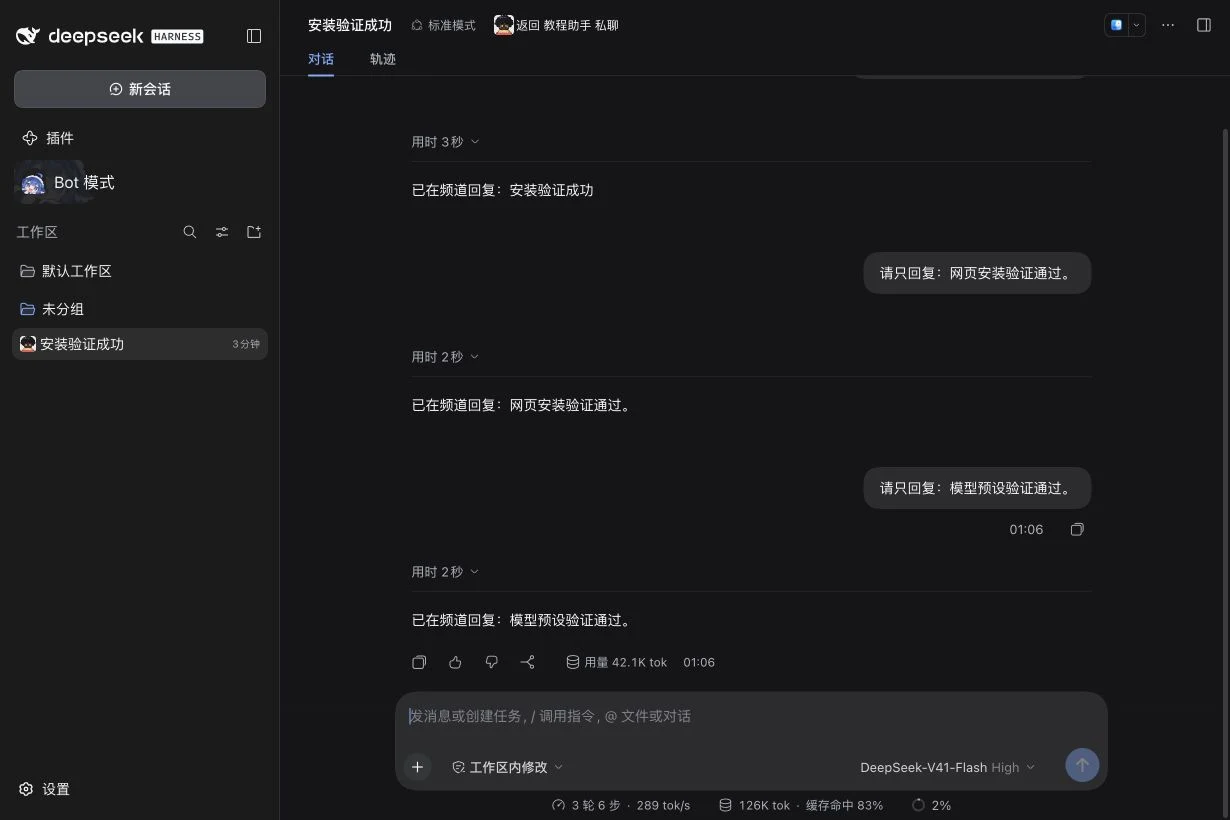
The Bot's saved model settings and an open Session's model selection are separate visible states. For resumed sessions, check the model used by the next turn after saving; a saved label alone is not request verification. Inspect running tasks in their own sessions.
| Symptom | Check |
|---|---|
| “No models are available” | Settings → Models: saved provider, working credentials, and catalog entries; then reopen the Model dialog. |
| “Current model unavailable” / repair needed | A provider/model may have been renamed or removed. Pick an available model in the Model dialog and save. |
| No reply / service error | Check URL, protocol, key, model ID, and service quota. Complete a local DM first. |
| Session model differs from the settings | Inspect that Session's selector and next-turn usage; retain the result for feedback instead of repeatedly editing the settings. |
Other fields and locations are covered in Settings guide. IM connections have separate Lark / Feishu and Slack guides.