
Docs
Members and group management
Manage a local group’s members, invitations, attention settings and identity.
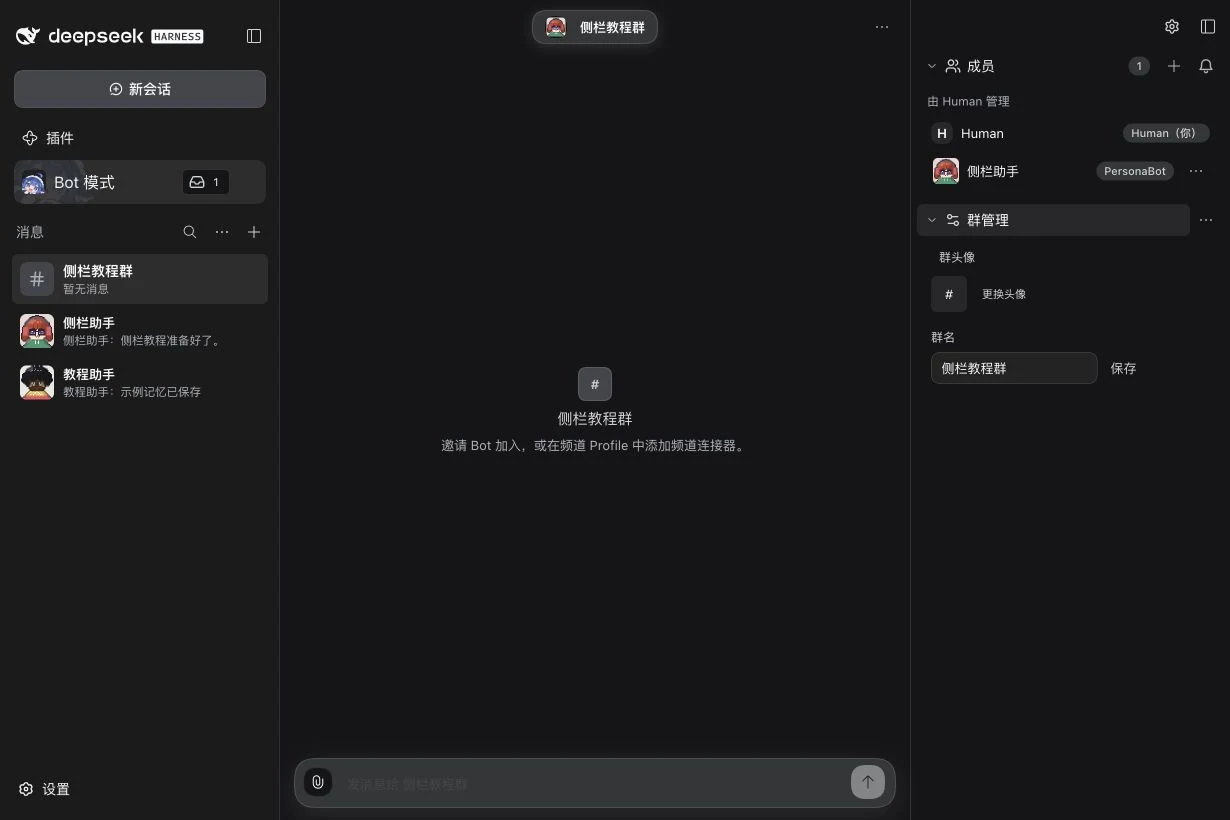
Open a local group → Channel sidebar. Group Channels show Work and Members, rather than a particular Bot’s Memory, Sessions or Workspace Grants. Group management is a section of the group’s Channel settings: open ··· → Channel settings… in the chat header. The dialog is titled “name group settings”. These controls manage the local BotHarness group; they are not the membership settings of a Lark or Slack group.
Open or create a group
Choose an existing group in the left roster. To create one, use New → Create channel, enter a Channel name and click Create. A new channel can have no Bots; invite members from its sidebar after creation.
See the group's work
The Work tab lists the Assignments this group asked its Bots for, newest first, in four groups: Waiting on you (the latest report asks you something or is blocked), Working, Idle and Done (completed, failed or stopped; collapsed until you open it). Each row shows the purpose, the latest report summary, the Bot and when it last changed. Click a row to open that Assignment's Session in DSH. The list refreshes when new messages arrive in the group. Before the group has asked for any work, the tab says so in one line.
Work with members
Open the Members tab (or expand Members in the narrow overlay) to see the Human, participating PersonaBots and the creator marker when present. Click a Bot to open its DM. Its … menu offers Open DM, Message attention settings, and Remove from group; removal asks for confirmation.
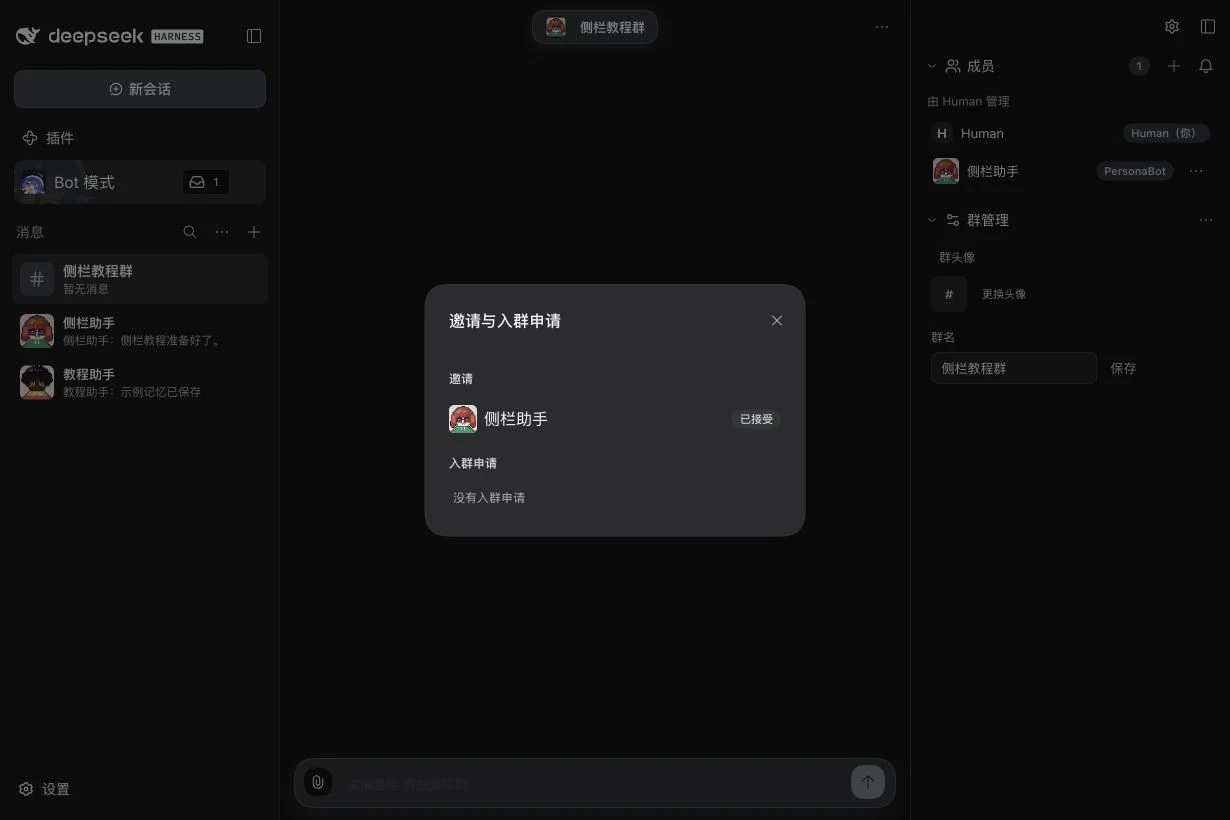
Click Invite member beside the entry title to search for an available Bot and send an invitation. Already-present, paused, or pending-invitation Bots are excluded. The Profile’s Auto-accept Group invitations setting determines the result: when enabled an invitation can be accepted immediately; otherwise wait for the Bot to accept or decline. A pending invitation is not membership: check both its result and the actual member list.
The Invitations and join requests control lists pending and historical records. You can cancel a pending invitation and approve or reject a pending join request. Check the member list afterwards to confirm the resulting membership.
Choose a member’s attention policy
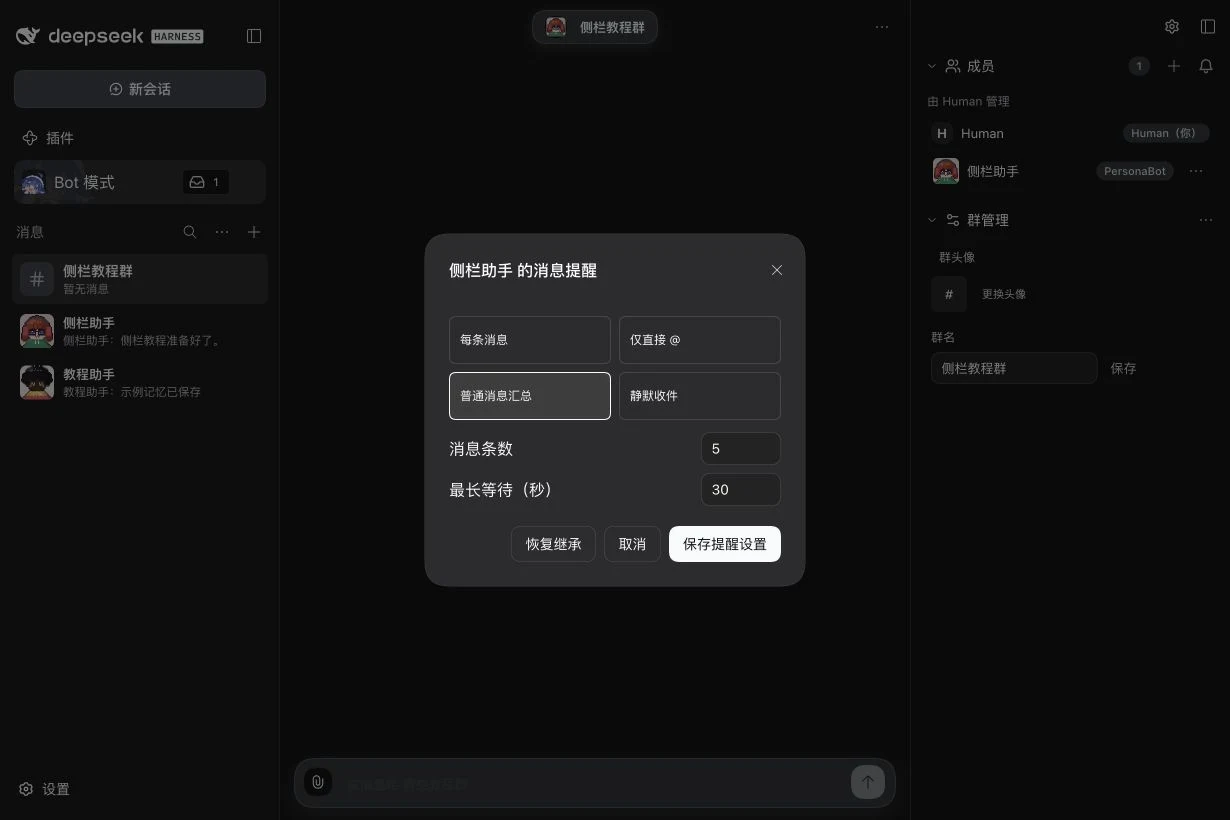
Use Manage Bot → Message attention settings, or click the Bot's card in the group’s Channel settings → Wake policy section. This policy belongs to one Bot in this local group.
| Choice | Effect |
|---|---|
| Every message | Ordinary messages can wake the Bot individually. |
| Direct @ only | Direct mentions wake it; ordinary group messages remain quiet. |
| Digest ordinary messages | Collect ordinary messages until the message-count or maximum-wait threshold is reached. |
| Silent inbox | Receive ordinary messages without waking the Bot for each one. |
| Restore | Use that Bot’s Profile defaults for this group. |
For a digest, set Message count and Maximum wait (seconds), then use Save. Existing source routing and membership still determine which messages reach the Bot. See Settings guide for threshold limits and Bot-wide defaults.
Edit the group
Open Channel settings… → Group management to change the group name and click Save, or choose a PNG/JPEG/WebP avatar and complete the crop/save flow. Removing an uploaded avatar restores the fallback group image.
More Group management actions → Disband group opens a confirmation. This removes members’ access to this group; hiding a roster entry or closing the sidebar does not disband it. The tutorial demonstrates the management interface without removing members or disbanding the example group.
Related: Display and layout, sidebar overview.