
Docs
Connect a QQ Bot: registration to group replies
Register an official QQ application, connect and bind it in DeepSeekBot, set mobile permissions and verify real group replies.
Follow Tencent developer verification → official QQ application → DeepSeekBot connection and binding → mobile group permissions → a real group reply. If you already own an application, start at step 4.
Open a step image to view its original size.
Prepare first
- An administrator account for the QQ Open Platform and a dedicated group you can manage.
- A running DeepSeekBot, working model and target Bot. Get a real local DM reply first; see installation, model setup and the 2-core / 4 GB VPS guide.
- One application must have one running receiving Host. Assign independent QA Apps to concurrent branches; stop the original receiver before handing it over.
Version scope: this flow applies to DeepSeekBot 1.4.1 (npm deepseekbot), DSH 0.2.1-rc.2 and the bundled QQ Provider 4.32.0-botharness.21. The product screenshots and recordings in steps 4, 5 and 7 come from the historical 1.2.1-vps.20261012.sha031a14db candidate qualification (commit 031a14db43af5b3bf52e76b01c30e27828e6e9c9, DSH 0.2.0-rc.1, QQ Provider 4.32.0-botharness.19), so button positions and wording can differ slightly; follow the version you installed and see Connections and optional tools. Tencent's instructions were checked on October 12, 2026.
1. Register and verify your developer account
Open the QQ Open Platform. Existing developers can sign in. Otherwise choose personal or enterprise registration according to your identity, activate your email and complete administrator identity verification. Enterprise registration also requires business and bank-account checks. The account holder enters identity details, codes and authorization QR codes privately; pause recording first.
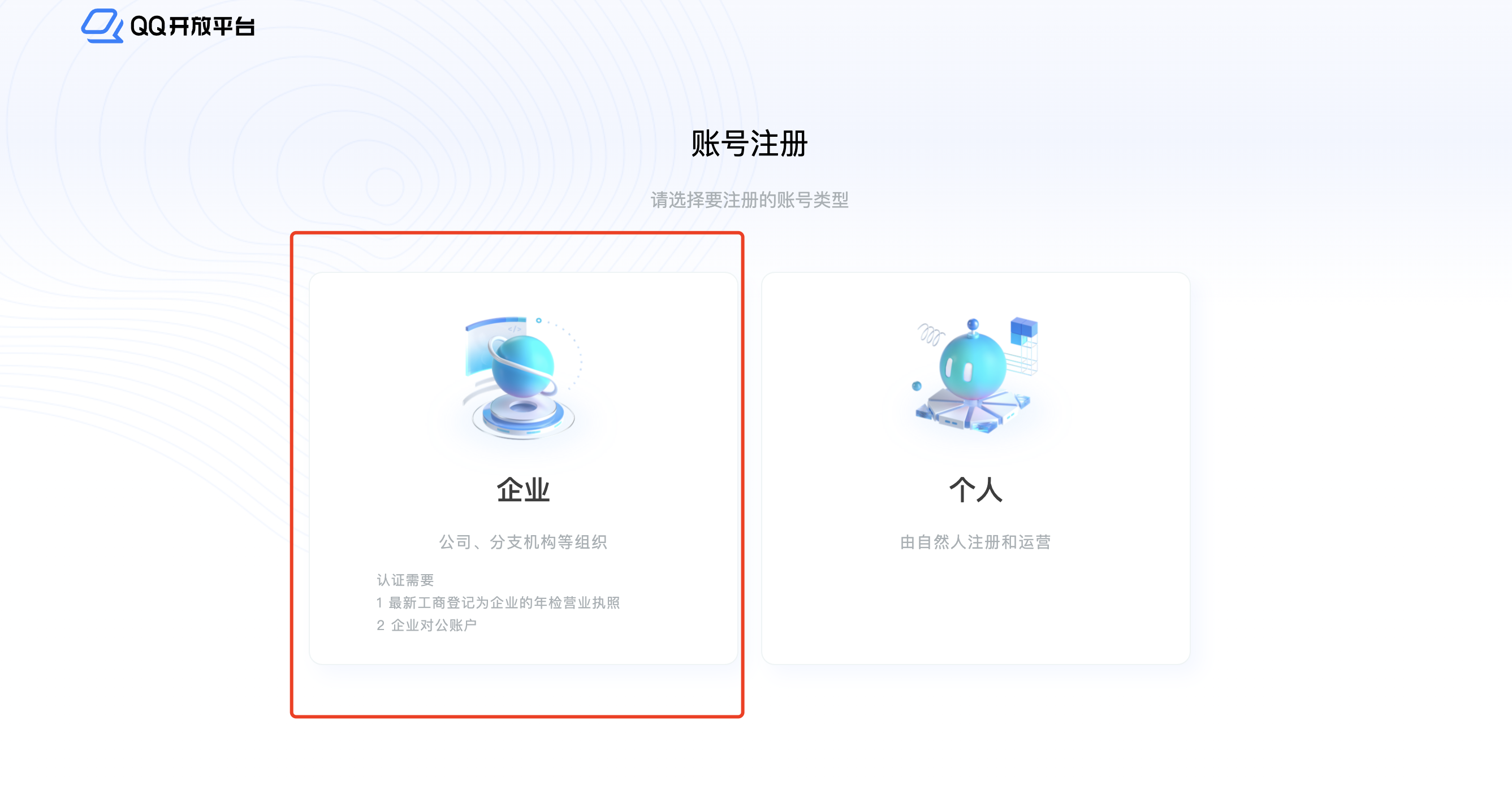
The current official guide lists QQ group development for both account types, with differences in later API eligibility. Check verification status and pending actions in application management, including unfinished enterprise checks. Older instructions restricting personal developers to channels should not replace current requirements.
2. Create an official QQ Bot application
In application management click 创建机器人 (Create robot), submit its name, avatar and description, then open the application after its AppID is generated. This QQ identity will later be bound to a Bot in DeepSeekBot.
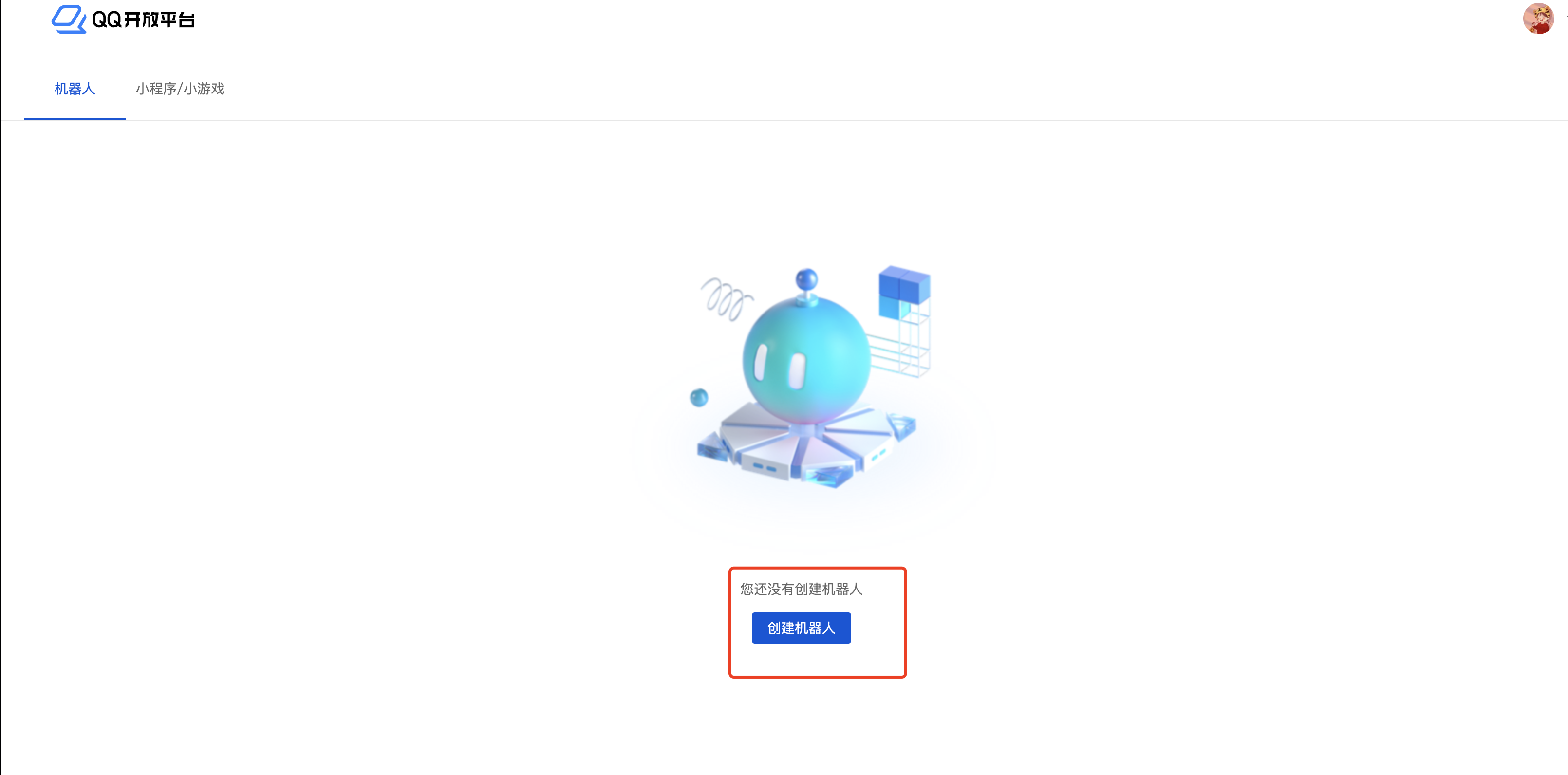
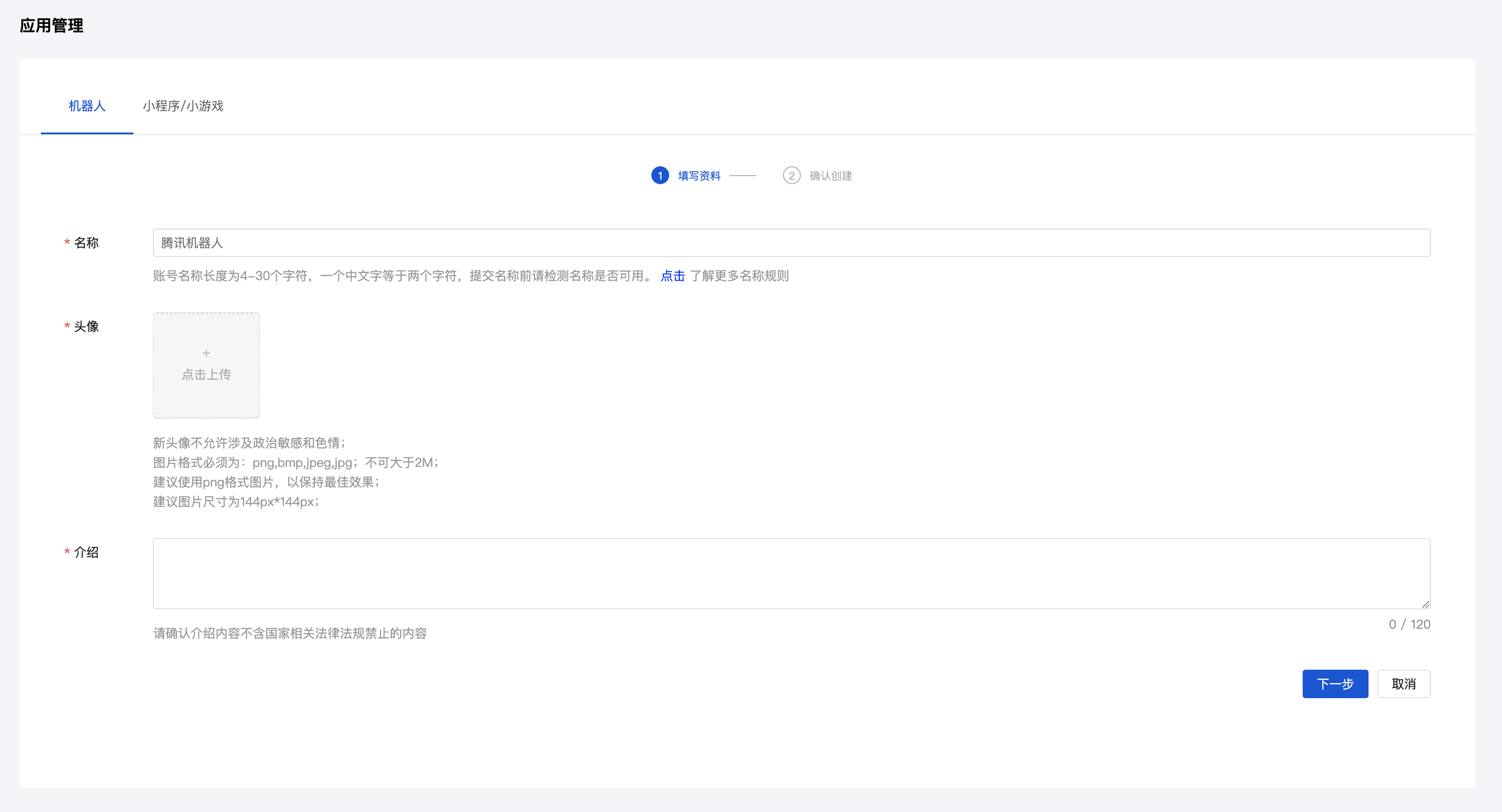
Find AppID and AppSecret in development settings. Enter them only in DeepSeekBot's native form later. The QQ account number, AppID, Token and AppSecret are different values. This guide excludes the credential page; do not send the Secret to another person.
3. Configure the group scenario and test environment
In 开发 → 沙箱配置 (Development → Sandbox configuration) select the QQ group scenario and save your test group. Its administrator can then use mobile QQ's group settings: 群机器人 → 添加测试机器人 (Group robots → Add test robot). If missing, check the administrator, application and environment.
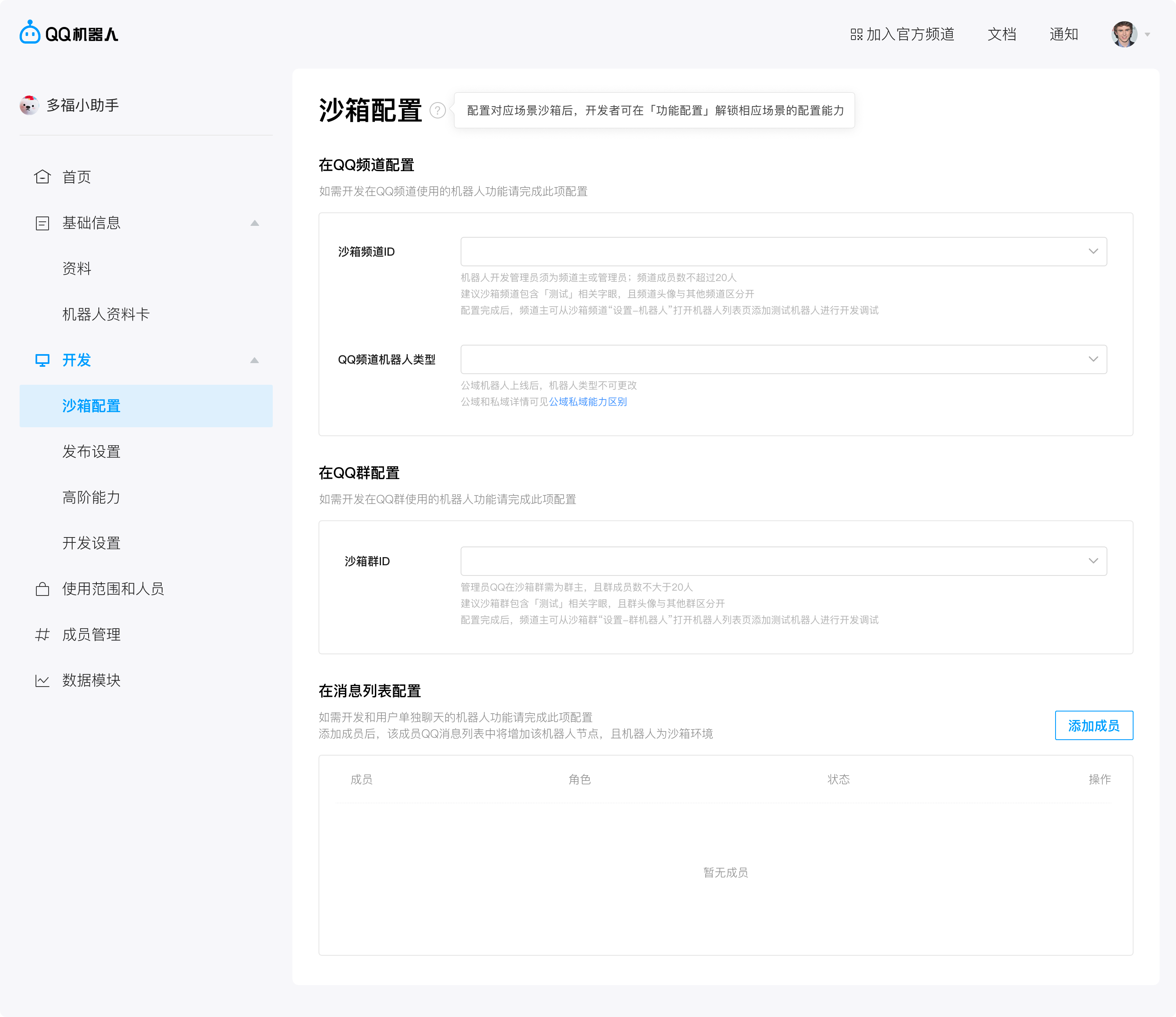
Official sandbox requirements include group ownership or administrator access and a member limit; follow current console conditions. The platform environment must match the installed Provider's connection environment. Our existing QA App's successful replies do not qualify every newly created sandbox App. If the Provider lacks a matching selector, verify support rather than inventing endpoints or hidden RPC.
Production groups also require platform configuration, a self-test report, review and release; check the allowed scope or whitelist. If production IP allowlisting is enabled, use the Host's public outbound IP for Tencent APIs, not a loopback or Tailscale address. Sandbox testing is separate from production release; creating an App does not make it available in every group.
4. Connect the QQ App in DeepSeekBot
After a real local model reply, open Settings → IM bots → QQ → Manual setup. Enter the existing App's AppID and AppSecret, then click Connect. Pause recording before entering credentials; clear or close the form before capturing again.
The qualified version's QR entry creates a Bot; reuse an existing App through Manual setup. If QQ or Manual setup is missing, check the installed qualified Provider and version instead of using another platform's authorization command.
Confirm the correct identity and connected status. Provider authorization, Bot binding and visible group delivery are separate checkpoints. The account holder completes initial authorization. Developers with a stopped, previously authorized native Profile can use the QQ QA reuse helper to allocate QA1/QA2/QA3, read the selected native credential and claim an exclusive receiver. This development helper is not a released deepseekbot im-authorize qq command.
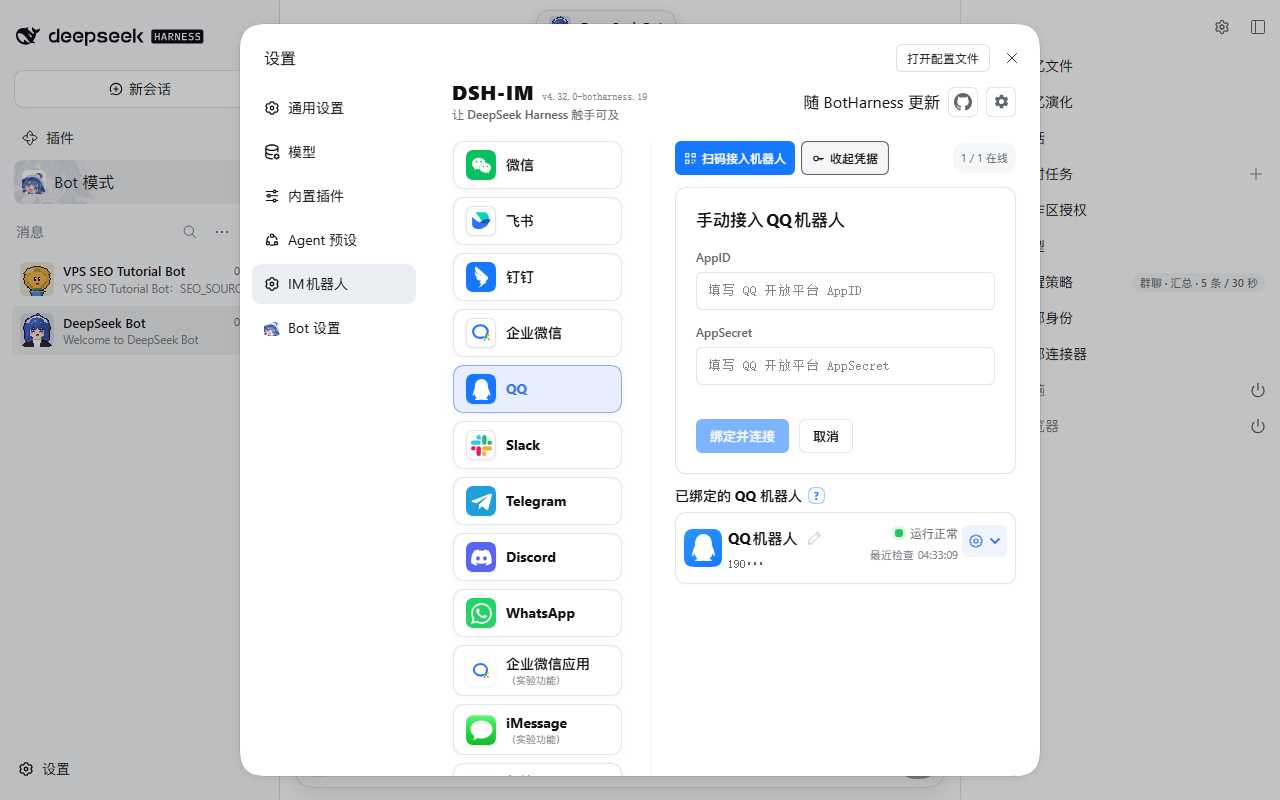
Transcript and chapters: actual entry points and an empty form, stopping before credential input. Strict SSH forwarding reaches the same VPS; this does not replace HTTPS verification.
5. Bind the application to your Bot
Open the target Bot's DM sidebar → External identities → QQ. Select the connected App and confirm. Follow the installed UI's new-conversation policy; ask-first also requires accepting the new group conversation. See External identities.
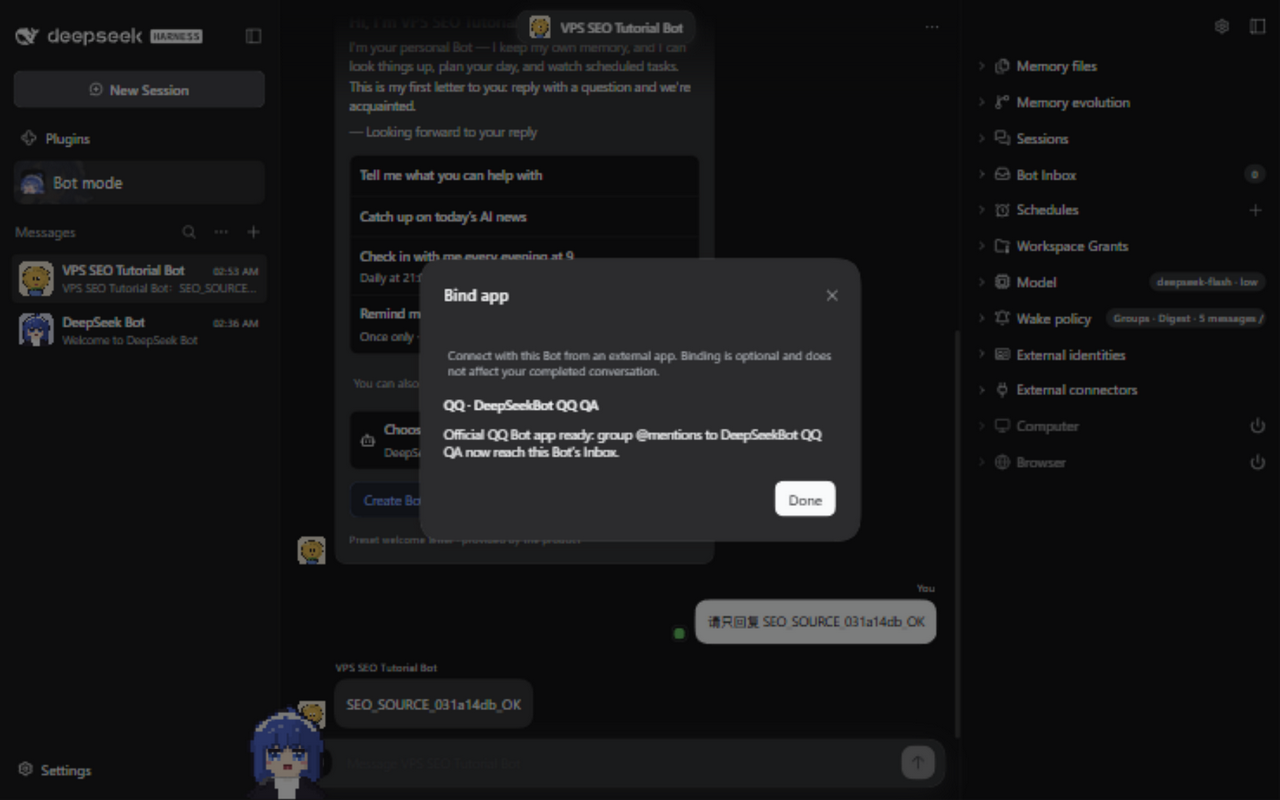
The actual 17-second binding recording excludes credential entry and group sending. Read the captions and equivalent transcript independently.
6. Configure mobile QQ group permissions
Both original mobile screenshots are preserved. Configure each application and group separately; a group owner or authorized administrator may need to operate these settings.
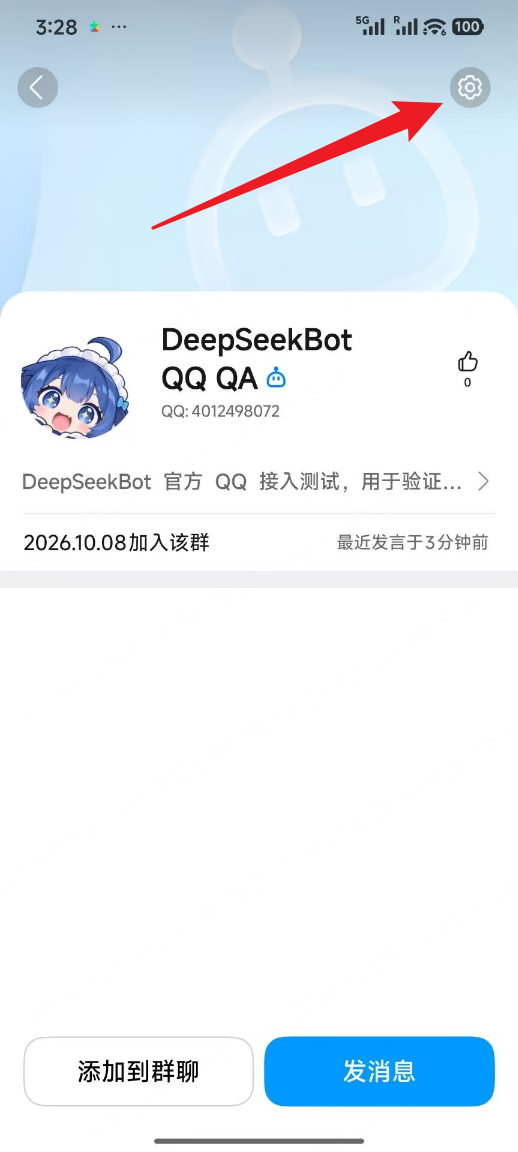
Open settings from the robot profile
In mobile QQ open the group, open the robot's profile and tap the gear at the upper right, marked by the red arrow.
Set reception scope and proactive speech separately
机器人可获取的群聊消息范围 controls which messages QQ delivers. The image selects all group messages. Basic @ replies do not require this option; ordinary-message processing also depends on the Provider and local conversation policy.
机器人主动在群聊内发言 allows proactive speech on QQ's side; its blue switch is enabled in the image. Enable it when needed and separately verify local sending authorization. Basic @ reply acceptance does not require enabling both settings. A notification-push switch elsewhere does not establish proactive sending permission.
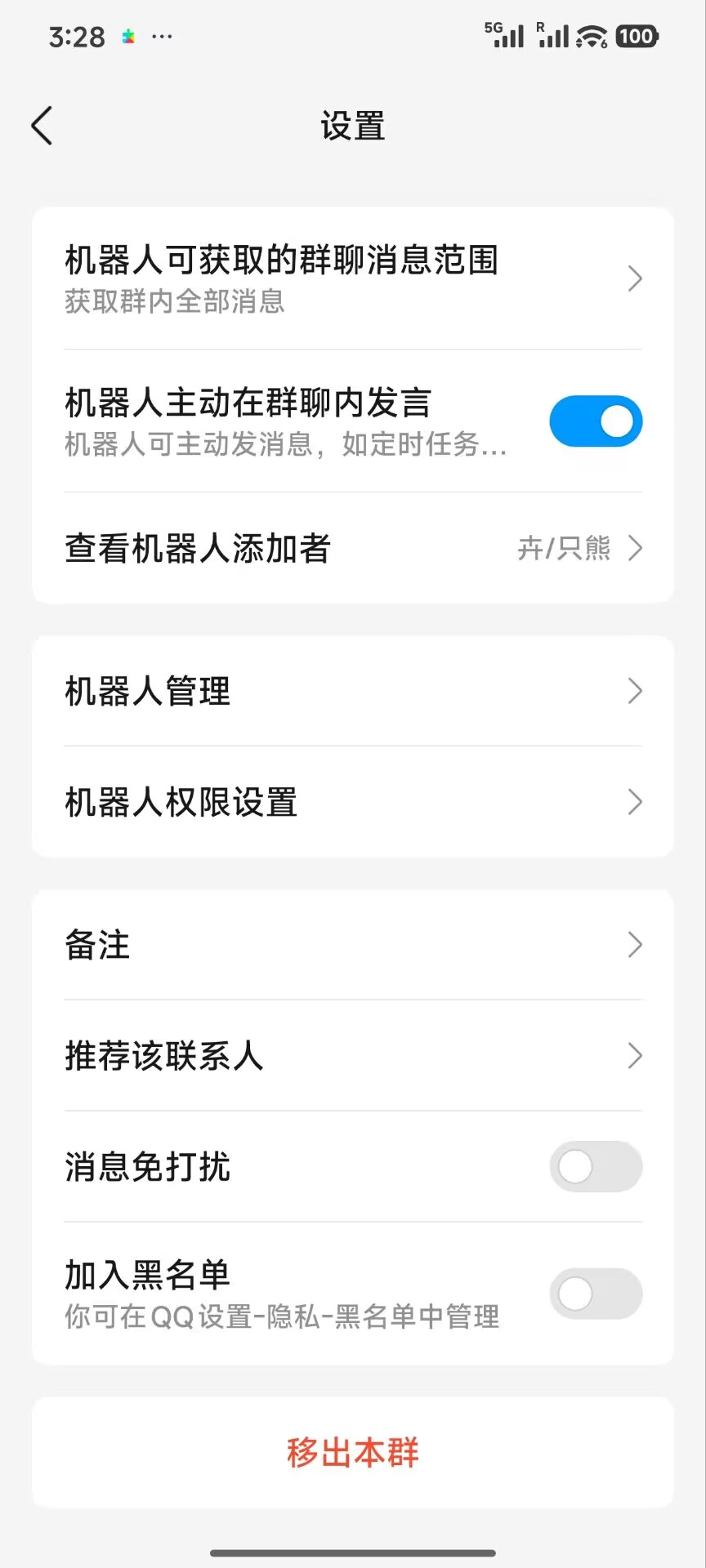
These images came from October 9, 2026 acceptance. Mobile labels and layouts may change; configure your own application.
7. Verify original-group replies and restart persistence
Use QQ's mention picker to select the correct robot. Send 请只回复 TUTORIAL_QQ_A_OK (reply only with that marker) and wait for its matching reply in the same group. A typed name, Connect success or accepted API request is insufficient.
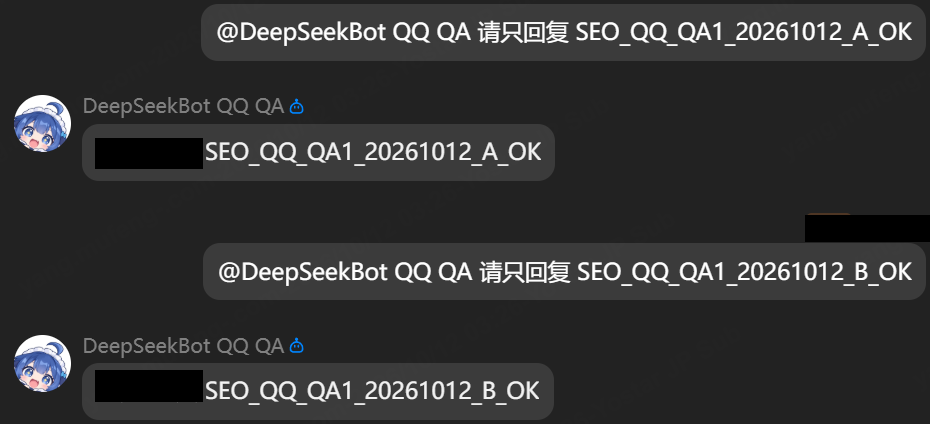
For persistent deployment, restart only your own Host, verify the Bot and binding remain, send a fresh marker such as 请只回复 TUTORIAL_QQ_B_OK and check the new visible reply. See the VPS guide for the task unit and refreshed Owner login procedure. Do not restart another tester's service.
For diagnosis correlate Source Event, Bot Inbox and outbound results. A Provider receipt is process evidence. This acceptance covers text @ replies, not every image, ordinary-message or proactive-sending capability.
What else you can do
Once basic @ replies work, turn on these as needed. The product repository's QQ connection notes cover the full steps and current limits.
- Sync to a local group: after the first @mention, choose Sync in the app's Edit identity conversation list and pick a local group that contains this Bot. Later mentions appear there, and replies still go back to the original QQ group. Mute keeps receiving without waking the Bot; Block stops intake.
- Two Bots in one QQ group: bind each Bot to its own QQ application, then sync both conversations to the same local group. Each Bot replies only through its own application.
- Results after 5 minutes: QQ's passive reply window is five minutes. When a task finishes later, its result is kept, and the Bot can post it through an authorized saved target for the original group, within an hourly limit.
- Images, files and voice (development candidate): include an image in the @ message, or quote a file or voice message and @ the Bot, and the Bot can read, process and reply with an image or file; understanding images needs an image-capable model. These are still being qualified; check your installed version.
- Ordinary group messages (development candidate): only @ messages are received by default. The Bot collects ordinary messages for observation and periodic summaries only after you enable 获取群内全部消息 on the phone and opt in for that conversation.
QQ private messages are not supported yet; use another platform or the local DM for DM slash commands.
Troubleshooting
| Symptom | First checks |
|---|---|
| Cannot create or add a robot | Identity verification, review/release, scope, administrator and group eligibility. |
| Missing sandbox robot | Administrator, group-size conditions, matching platform/Provider environment, mobile group robot list. |
| Connect fails or disconnects | Matching AppID/Secret, Provider, server egress and production IP allowlist; inspect only credential-free summaries. |
| Connected but no @ reply | Real model DM, correct binding, pending conversation acceptance, actual mention and competing receivers. |
| @ fails after enabling all messages | Provider support for full-message events; avoid repeatedly sending an uncertain old task. |
| Proactive sending fails | Mobile switch, platform limits and local authorization; verify basic @ replies first. |
| Web unauthorized after restart | Privately use the new Owner login link; exclude tokens from captures and retain native authentication. |
Sources and media
The four Tencent images are public examples from its official onboarding guide, not a task recording of completing identity registration. Binding captures and QQ A/B evidence are from actual source-candidate acceptance. Both mobile originals are unchanged. The asset manifest records sources, SHA-256 digests and privacy processing.
Further reading: official group-message API, full group-message events, QQ specification #1149.