
Docs
External identities
Bind a connected app in the Bot DM sidebar and manage new conversations.
Version scope: current-source guide. Synced from current source (the public release is now deepseekbot v1.4.1); older test package versions and DSH 0.2.0-rc.1 screenshots are historical verification records. See Connections and optional tools for release and capability scope.
Open Bot DM → ··· → Channel settings… → External identities. It lists the external apps bound to this Bot (Lark / Feishu, Slack, Discord, WeChat and so on). An app belongs to exactly one Bot; other Bots cannot borrow it. A Bot can bind several apps, including several of the same platform (for example two Lark apps): each app receives its own DMs and @mentions into the same Inbox, and the Bot replies through the app that received the message. Apps are listed grouped by platform.
Binding an app is enough. Once bound, DMs to the app and @mentions of it in groups it belongs to go straight to this Bot’s Inbox, and the Bot replies in the same conversation. You don’t need a saved delivery target, a conversation authorization or a reception switch. Who can reach the app is decided by each platform's settings, such as Lark's availability scope, group membership and app permissions, or Discord's channel permissions.
The same goes for Slack and Discord: DM the app or @mention it in a channel it belongs to. Personal WeChat only receives DMs from the person who scanned it; other contacts and WeChat groups stay out of the Inbox.
The first official QQ Bot application path receives text @mentions in groups and replies in the original group. Its ready state refers to group mentions. QQ private messages, ordinary traffic and media need separate capabilities; passive replies have the platform's five-minute window.
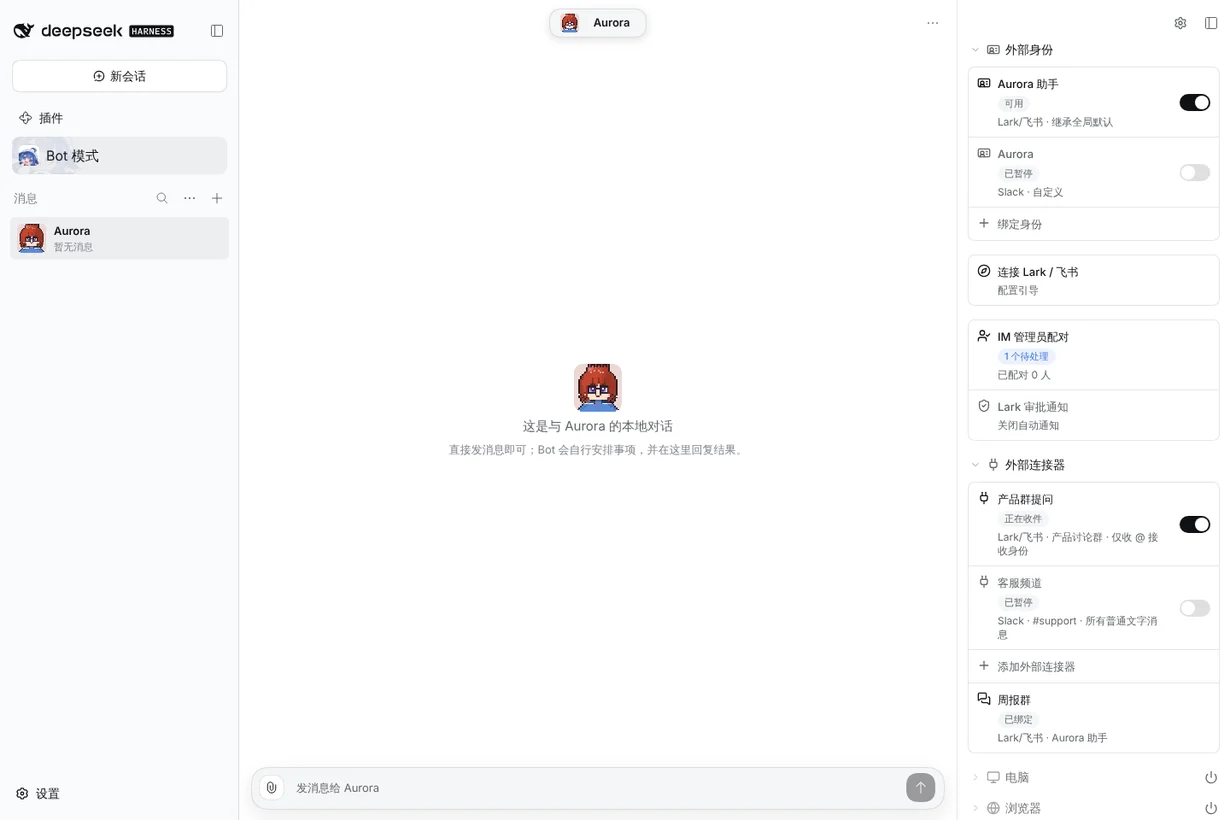
Connection tutorials
Open + Bind app for direct links to the website tutorials for Lark / Feishu, Slack and WeChat. More platforms opens this overview, including Discord. Each link has an upper-right arrow and opens in a new tab so the binding dialog stays available. Application creation, permissions and publication instructions live in those tutorials; Channel settings has no separate Lark setup card.
Read the rows
| Row | What it shows and does |
|---|---|
| One row per bound app | Local display name, a status chip (Available, Paused, Unavailable or Rebind required) and “platform · N conversation(s)”. The Switch pauses the app. |
| + Bind app | Bind a connected app to this Bot. |
| IM administrator pairing | Shows “N pending” and “N paired”. Opens the pairing review dialog; see Connect a Bot to Lark / Feishu. |
| Management notifications | Shows the destination, or Automatic notifications off. Opens the approval notification dialog. |
Bind an app
- First connect the app under Settings → IM Bots, following the guide for your platform.
- Click + Bind app.
- Choose the connected app under App. The dropdown is searchable: type to filter. Apps this Bot already has are omitted; apps another Bot owns stay visible, greyed out and labelled bound to another Bot: name, and disconnected apps say not connected. Add new app appears beside the App label and always at the bottom of the dropdown, including when the list is empty or a search has no matches. It opens Settings → IM Bots: connect or scan there, then close Settings to return to this dialog. The list refreshes automatically when the dialog opens and when you return from Settings. The refresh icon to the right of the picker has a Refresh apps tooltip and reloads the list manually; if refreshing fails, retry before binding.
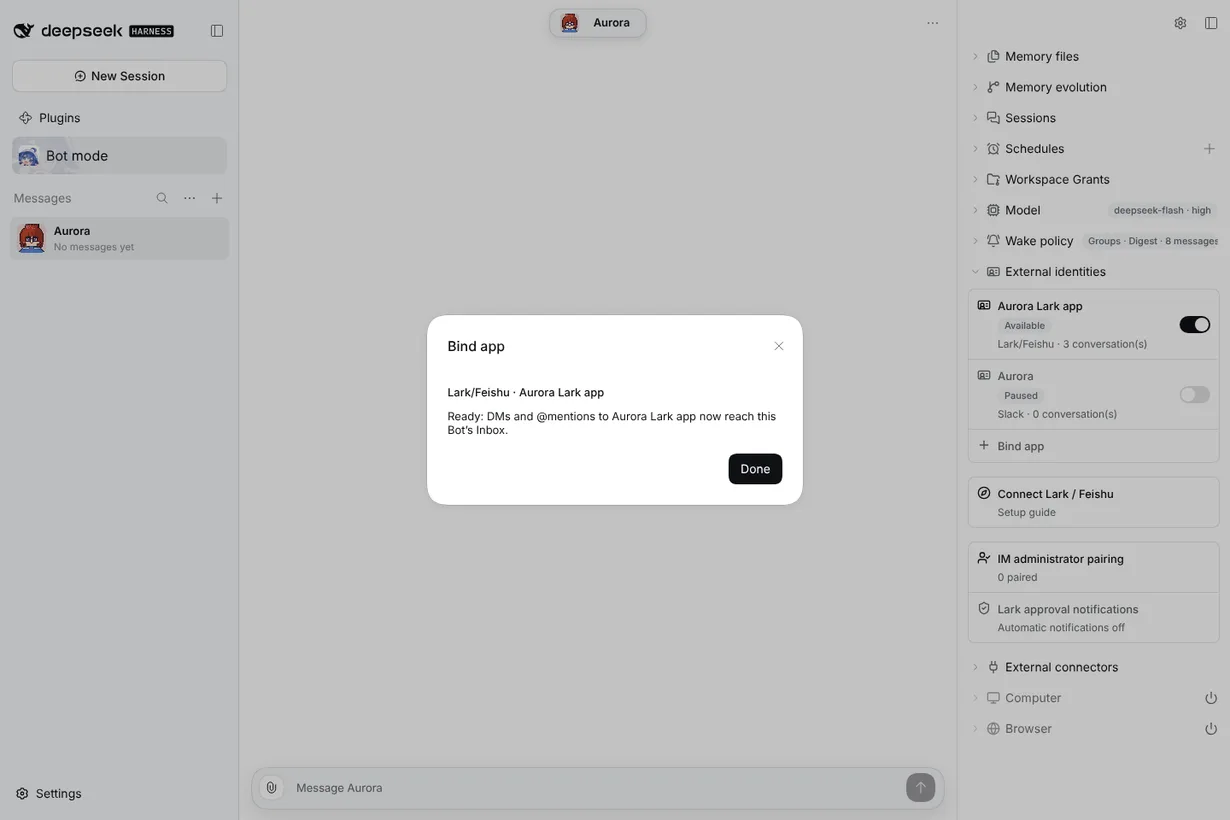
- Click Bind app. The dialog then shows the real receiving state:
- Ready: DMs and @mentions to the app now reach this Bot’s Inbox.
- Connecting: the app is still opening its receiver. Wait a moment.
- Can’t receive messages right now: check the app’s connection under Settings → IM Bots.
- DM the app, or @mention it in a group. The message appears in the Bot Inbox and the Bot replies in place (in the same topic for a group). Group messages that don’t @mention the app stay out of the Inbox.
A /pair command doesn’t enter the Inbox. IM administrator pairing still handles it.
Manage the conversations
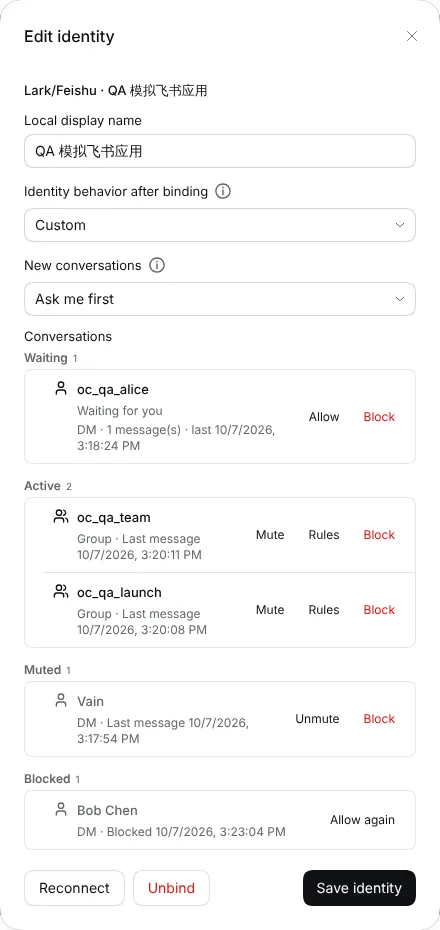
The first DM or @mention that reaches the Inbox records its conversation. Click the app row and look under Conversations in the Edit identity dialog. Each conversation shows its name (the person’s name for a DM, the group ID for a group), DM or Group, and the last message time, sorted into four groups:
| Group | What it means | Actions |
|---|---|---|
| Waiting | A new conversation that hasn’t been let in yet, with the reason and its message count | Allow, Block |
| Active | Messages reach the Inbox and wake the Bot | Mute, Rules (groups), Block |
| Muted | Messages still reach the Inbox but never wake the Bot; you can still reply | Unmute, Rules (groups), Block |
| Blocked | Messages are dropped and the conversation never comes back on its own | Allow again |
- Rules opens collection and wake settings for this one group.
- Hover any action to see what it does. A conversation that is already synced into a Channel shows Synced to …; manage syncs under External connectors.
- Block asks for confirmation. Replies that haven’t been sent yet are cancelled, and old messages can no longer be replied to. The block stays across restarts and even after you unbind and bind the same app to this Bot again.
- Allow again starts a fresh conversation from the next message. Messages sent while it was blocked are not backfilled, and its old rules are not restored.
New conversations
New conversations in the same dialog decides what happens the first time someone DMs the app or @mentions it in a new group (personal WeChat only has its owner, so it has no such setting):
- Admit automatically (default): the message goes straight to the Inbox.
- Ask me first: the conversation waits under Waiting. Only its name, first and last seen time and message count are kept, never the message text. After Allow, the next message is admitted.
Each app starts on Follow platform default, which uses the New conversations column in the platform's global IM defaults (Lark, Slack and Discord each have one; Admit automatically unless you change it). Pick Admit automatically or Ask me first in the app dialog to override it for that app only.
To keep a busy app from flooding the Inbox, at most 20 new conversations per app join automatically each hour, and an app holds at most 500 active conversations. Past either limit, new conversations wait under Waiting and the row says which limit was hit. Waiting keeps the 200 most recent conversations per app.
Post to a group
An available app has a Post to group action. With a compatible Provider, the picker lists groups the app can currently speak in, including groups with no previous mention or saved target. Choose the group and enter a message; native permission and local authorization are checked again before dispatch. An older Provider shows an update hint; its existing saved-target action remains available.
The app starts with a limit of 60 proactive posts per rolling hour. Change that limit in the dialog, or leave it blank to disable it. Started unknown outcomes count toward the limit. A block prevents posting; mute and waiting do not create permission by themselves or prohibit an explicitly authorized post.
The result distinguishes platform acceptance, a definite refusal and an unknown outcome. For an unknown outcome, inspect the original group and Outbox instead of sending the message again. The first post creates a conversation entry; it does not create a local DM or inbound message.
Closing and reopening the picker retains unresolved requests. If a response was lost, an explicit retry keeps the original request ID; an unknown outcome remains blocked for the same group and message. After a definite result, clicking Post to group again is a new requested post. A failed conversation-list refresh does not change an accepted send result.
The rebuilt Lark slice passed a fresh-group first post and a blocked zero-send check on 2026-10-13; the same qualified Provider .20 is published on next and its downloaded archive is byte-identical to the accepted package. This capability does not establish QQ proactive permission or own Echo.
Edit, reconnect or unbind
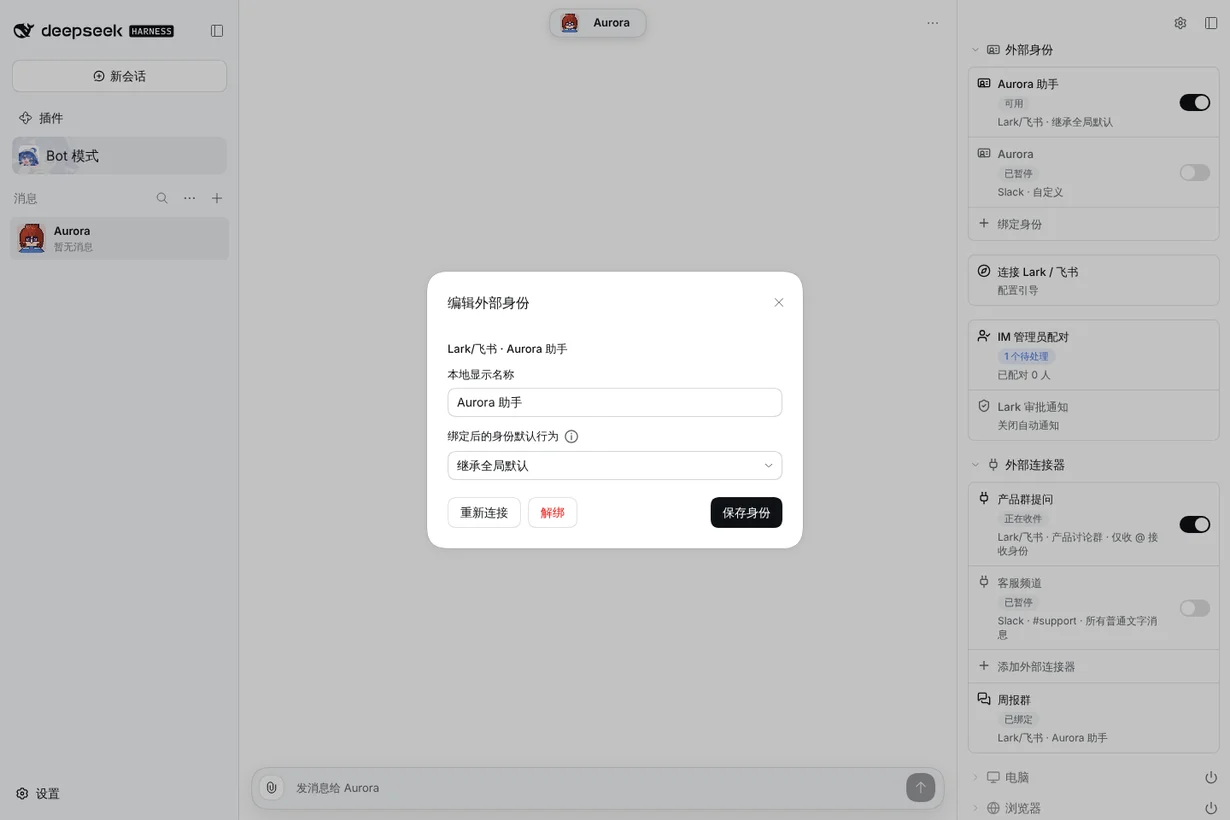
Click an app row to open Edit identity.
- Change the Local display name, the identity’s default behavior after binding (inherit the global default, or choose a custom value), or New conversations.
- Click Save identity.
- Reconnect revalidates the same app and its existing conversations. A changed app requires unbinding and binding again.
- Unbind (red) asks for confirmation and lists the conversations it invalidates. After unbinding, the app stops delivering to this Bot and old conversations can no longer be replied to. Accepted messages and source history are retained; the shared app and its credentials are not removed.
- Pausing the app with the Switch stops new messages from reaching the Inbox right away. Turning it back on resumes them.
Platform setup: Lark / Feishu, Slack, personal WeChat. All sidebar features.