
Docs
Memory evolution
Inspect working changes, Git history, branch requests and recovery checkpoints.
Open Bot DM → Channel sidebar → Memory evolution. This entry separates the repository’s current uncommitted changes from its Git history. Reading a diff does not apply it or revert a file.
Inspect a change
- Expand Memory evolution.
- In Current Memory, expand a change group and click a file to open its Uncommitted diff in the center.
- In Commit history, click a commit row to open its changed files and Commit diff.
- Click Back to chat when finished. Use Load more commits to inspect older history.
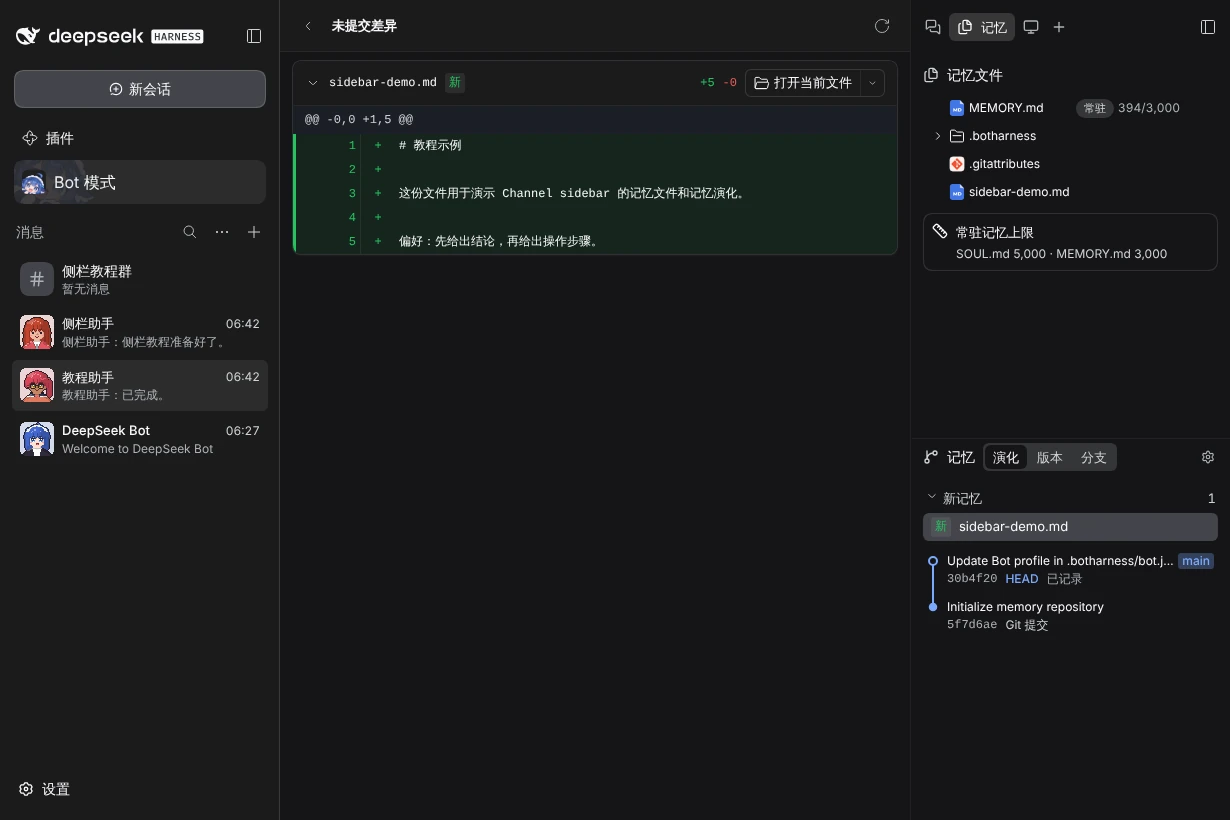
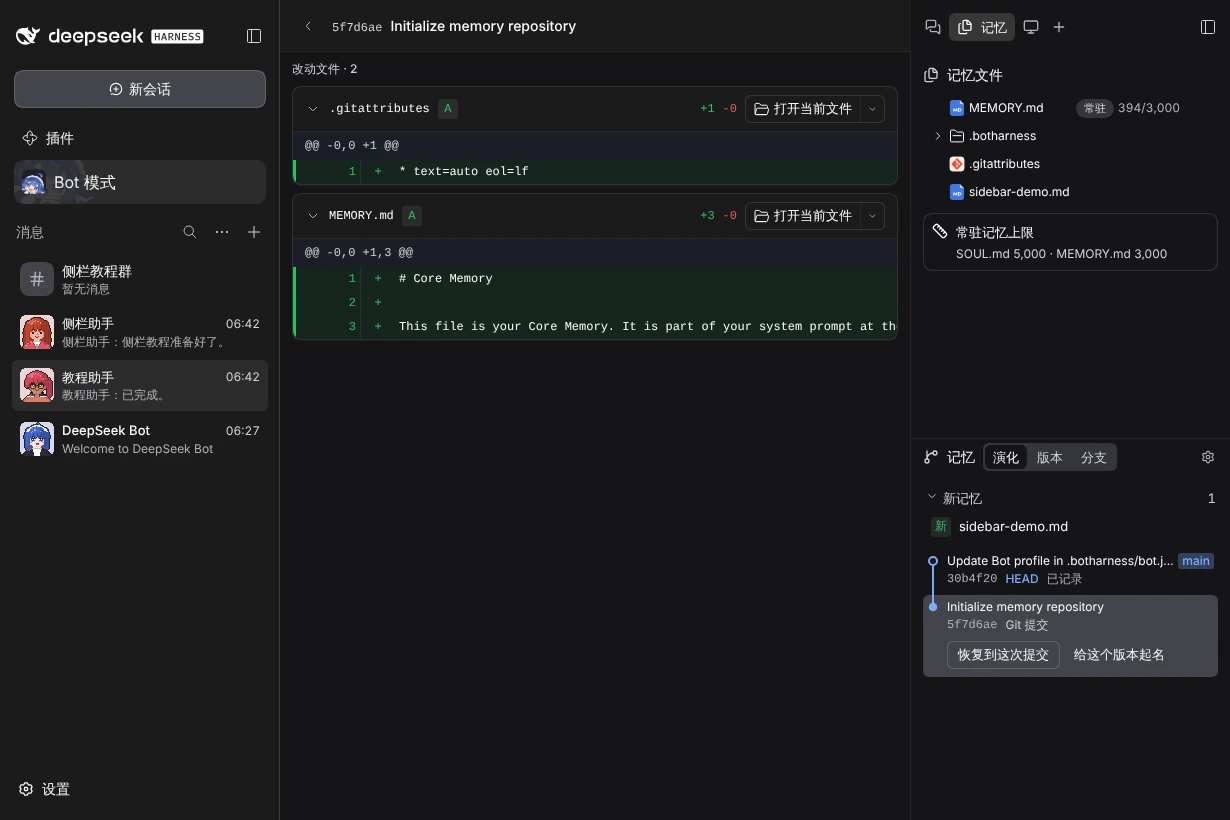
| Control or label | Meaning |
|---|---|
| New Memory / Updates to existing Memory | A friendlier grouping of uncommitted working-tree changes. |
| Unstaged / Staged / Untracked | The corresponding Git grouping when the display terminology is Git. |
| HEAD and branch labels | The checked-out commit and references in the Git graph. |
| Recorded / Git commit / Needs repair | BotHarness checkpoint annotations on Git history; they do not establish who authored the files or approve their content. |
Change the terminology with the gear in the Memory title → Terminology. This changes labels and grouping, not repository contents.
Request a branch switch
A branch is another line of development for Memory. It is rarely needed, so it has its own Branches tab, which lists every branch and marks the current one. Open another branch and click Switch to this branch; the interface sends a request to this Bot’s Orchestrator. Wait for the Bot’s result and verify the displayed branch and current files. If Git refuses because of unfinished changes, keep the changes and inspect the Bot’s report.
To start a new line from a commit, right-click it in Evolution and choose Create and switch branch from here, which opens a new-branch name field. Create and switch also sends a Bot request; it creates a branch from that commit rather than undoing later commits on the original branch. Confirm the operation and resulting files after the Bot completes it.
Restore an earlier memory
Select a commit in the graph. Restore to this commit appears inside that commit's block; you can also right-click any commit. The confirmation says that Memory returns to how it was right after this commit: the commit's own changes are included and later commits are not. If Memory has changes that are not committed yet, they are first saved automatically as an ordinary commit in the graph. You can also give the version before restoring a name. Save changes and restore (or Restore when there is nothing uncommitted) then adds a new commit whose files match the selected commit. Every point you can go back to stays in the same graph, and Memory files refreshes as soon as the restore finishes.
Name a version
Select any commit and click Name this version to give it a name you will recognise later, such as "Draft before cleanup". The name appears as a badge on that commit in the graph. Remove it with the × next to the name in the commit's block. Names are stored as Git tags, so they stay with the Memory repository and do not change any commit.
You can also right-click a commit and choose Name this version.
The section title reads Memory followed by three tabs: Evolution shows the Git graph, Versions lists only the versions you named, and Branches lists every branch (see above). Versions shows them newest first, however far back they are. Click a version to open its changes, then Restore this version or Remove name.
Restore from an automatic backup
BotHarness also backs up Memory automatically when it changes, when a conversation ends, and before you restore, including files that are not committed yet. These backups stay out of the panel because Evolution and Versions cover everyday time travel. If Memory was damaged by accident and you cannot find it there, open the gear in the Memory title and choose Restore from an automatic backup…. Each backup shows when it was taken and why. Pick one, click Restore to this point, then Restore. The whole Memory folder is copied first, and the dialog shows where that copy is. A Repair Memory state has its own confirmation and backup procedure.
The screenshots demonstrate reading the real repository and commit diff. They do not demonstrate a recovery or claim that the example repository needed repair.
Related: Memory files, Display and layout, sidebar overview.