
Docs
Workspace Grants
Review a Bot’s folders and understand the separate task and tool permissions.
Open Bot DM → Channel settings → Workspace Grants (the chat header's ··· menu → Channel settings…). Grants belong to this Bot. A folder shown in DSH’s left Workspace list is not automatically a grant to every Bot.
Review the folders
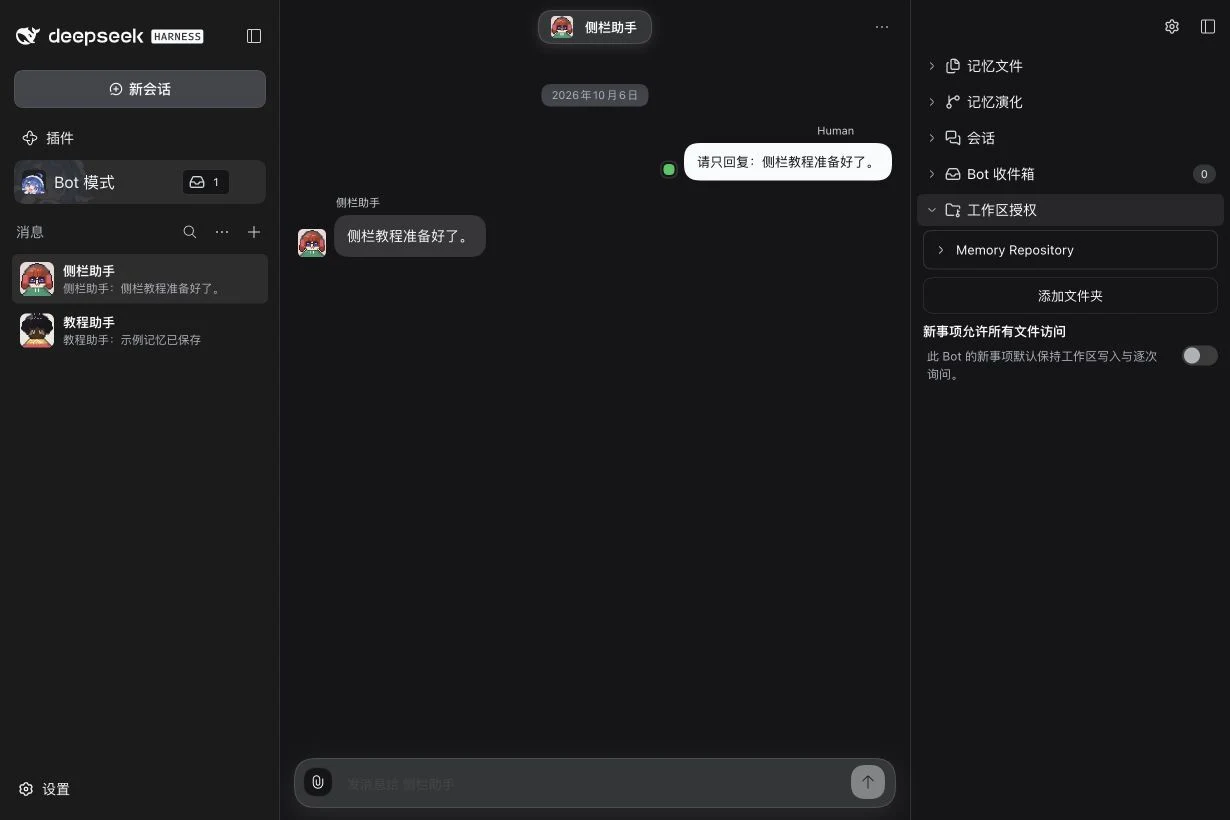
Expand Workspace Grants. The Bot’s Memory Repository is shown separately. For an authorized folder, expand its row to inspect the full Host path and available controls. Path actions open on the Host or download to the current device as described in Open files on the Host.
Add a folder
- Click Add folder.
- Browse to the intended Host directory in the picker, or use the native picker when that Host provides one.
- Confirm the chosen folder. Wait for the authorization to finish and check the new row’s actual path.
- Tell the Bot which task should use that folder. A new Assignment still needs to select a valid Workspace Grant; a mention of a path in chat does not grant it.
A Workspace Grant allows the Bot’s Orchestrator to read that directory and an Assignment using it to read/write there. The folder’s Allow Bot to write in this folder switch is a separate, explicit choice for direct Orchestrator writes. Tool approval and the native execution restrictions still apply. Removing a folder’s authorization revokes the grant; hiding the sidebar row does not.
New-task permissions
| Control | Scope |
|---|---|
| New Assignments allow all file access: off | New Assignments default to workspace-write with ask. |
| Turn on, then confirm | Opts future Assignments into danger-full-access with never; the selected Grant remains required. Read the confirmation before enabling it. |
| Existing Assignment | Keeps its stored permission snapshot; changing the default does not reconfigure it. |
| Saved tool-approval rules | Answer matching future tool requests for the recorded Bot role and Workspace Grant scope. Inspect details and revoke an unwanted rule separately. |
The switch does not change Orchestrator permissions. Per-folder Orchestrator write, new-Assignment access, and tool approval are different controls.
Developer mode exposes additional controls such as a manually entered Host path, registered folders and revoked-grant history. Ordinary setup uses Add folder; do not infer a grant from a saved text path alone.
The screenshot shows the actual initial state. This tutorial capture did not add a folder or enable broader permissions. For a task refusal, open its Session and inspect the selected folder, access mode and actual tool result rather than assuming that a visible folder guarantees execution.
While an Assignment awaits approval
An Assignment without Subagent descendants can release its running slot while it waits for your tool approval. The card says that it is waiting for approval without holding a slot. Other tools must have finished first. This does not unblock an Orchestrator’s own approval or a Group privacy request.
- In Bot mode Settings, set the Assignment concurrency limit to 1. Ask the Bot to create an Assignment that runs a harmless command requiring approval; inspect the exact request and leave it pending.
- Send an unrelated message. The Bot can reply while that independent Assignment waits.
- Ask for a second Assignment that runs a harmless 45-second wait. Approve its card and verify that its command has actually started.
- Approve the first request while the second runs. Its card shows Decision received; waiting for a running slot. The first command runs only after the second releases the slot.
- Inspect the original Session’s actual tool result. Removing the folder authorization while the approved call awaits capacity prevents that original call from executing.
At most 32 Assignment Sessions can await approval independently of the running limit. New work still refuses when running slots are full. After a Host restart, an interrupted Assignment needs inspection; its old approval card cannot restart or replay the command automatically.
Related: Settings guide, sidebar overview.