
Docs
Settings guide
Find non-IM settings, understand each field and its application scope.
Version scope: current-source guide. Synced from current source (the public release is now deepseekbot v1.4.1); older test package versions and DSH 0.2.0-rc.1 screenshots are historical verification records. See Connections and optional tools for release and capability scope.
This guide covers non-IM settings in the public deepseekbot package on DSH 0.2.1-rc.2: where to open them, what each field does, and when changes apply. Complete installation and API / Bot model setup first. Slack and Lark account/connection fields remain in their connection guides. Screenshots show the verified Chinese UI.
Find the right settings page
| Setting | Location |
|---|---|
| DSH appearance, language, default permissions, input behavior | Bottom-left Settings → General settings. |
| API providers and model catalogs | Settings → Models; see Model setup. |
| Native Agent tools and working style | Settings → Agent presets. |
| Bot icon, motion, sorting, concurrency, your name | Bot settings beside Bot mode, or Settings → Bot settings. |
| One Bot's name and avatar | Its DM header name/avatar → View details. |
| One Bot's models and wake policy | Model and Wake policy in its DM's Channel settings (header ··· menu). |
| Right sidebar layout and session views | Gear at the top of Channel sidebar. |
| One Bot's work folders and task permissions | Workspace grants in the DM's Channel settings. |
| An existing DSH Session's model and permissions | Open it from Sessions in the right sidebar and inspect its native controls. |
Complete environment backup and restore
Open Bot settings → Complete environment backup and restore → Manage backups. Preview export lists all historical Bot identities, managed-file count, estimated bytes and omitted native Sessions. Download verified backup captures the full BotHarness database, retained Memory repositories (including custom paths and deleted identities), current referenced attachment bytes and identity bindings, reachable legacy CAS, model presets and independent Bot plans, runtime dependencies, hashes and the canonical Content Purge checkpoint. The completed download shows its actual compressed size.
The file contains sensitive chats, source content, account descriptors, grants/triggers and Outbox/audit history. Keep it private. Credentials, executable Plugins, Workspace contents and native DSH Session transcripts are excluded. Session ownership remains visible as unavailable historical references. Source-local Git configuration is replaced with safe defaults and hooks are quarantined on restore. A missing retained repository or referenced file fails export; intentional Memory erasure remains distinct. This is a Profile backup, separate from a Bot's Profile details and from single-Bot Zip/Git sharing, which creates a new identity.
Select a .botharness-backup file to inspect its manifest, database integrity, count, final size
and SHA-256. Hashes establish integrity rather than source authenticity. Restore through the
trusted installed local command, substituting your file and a directory that does not exist:
botharness-profile restore --file "environment.botharness-backup" --new-home "new-environment"
For a source checkout, use node scripts/profile-restore.mjs with the same arguments. No Host is
started by restore. Launch the new home using trusted DSH 0.2.0-rc.1 and the matching BotHarness
Bundle; development checkouts use node scripts/dev-instance.mjs --home <new-home> --port <port>.
The launcher creates native Profile composition from the trusted pinned CLI rather than loading
executable configuration from the backup. Live Settings cannot choose a destination or replace
its own environment. Existing targets are refused, and the staging database uses the existing
Profile Writer Lease before validation/migration and publication.
The restored environment starts in Disaster Restore posture: Bots paused; account bindings, provider triggers, Service Grants, saved tool approvals and schedules suspended; Workspaces need new mapping; Browser/Computer access is off. Old Session, Inbox and Outbox work never replays. Cold Channel history and Memory remain readable. In Settings → Models, configure target-local credentials, and save an explicit model plan in the Bot's Profile. Return to Manage backups, review readiness, Authorize this target model, acknowledge possible simultaneous operation of the old device, and Activate this Bot. Send a new DM; it uses a fresh Orchestrator Session under the preserved identity. Missing models or changed plan revisions gate new requests instead of silently falling back. External account repair is a separate explicit authorization flow.
The package applies its own real Purge checkpoint before Messaging opens. An older offline file cannot know deletions accepted after its export. Limits are 512 MiB of unpacked bytes and 60,000 entries; export refuses insufficient staging space, changed files, an overlong capture or an existing output. Close/cancel an operation to abort before publication; after a lost download, preview and export again. Supported forward schema migrations happen only in staging; a newer unsupported schema, damaged file, unsafe path/link or missing closure refuses the restore and leaves no committed destination. Planned transfer and replacement of existing homes are later capabilities.
DSH general settings
These are native DSH settings. Initial values below were observed in a clean RC1 Profile; existing Profiles may retain different choices. Selectors and switches save directly. Fields with a Save button require that button.
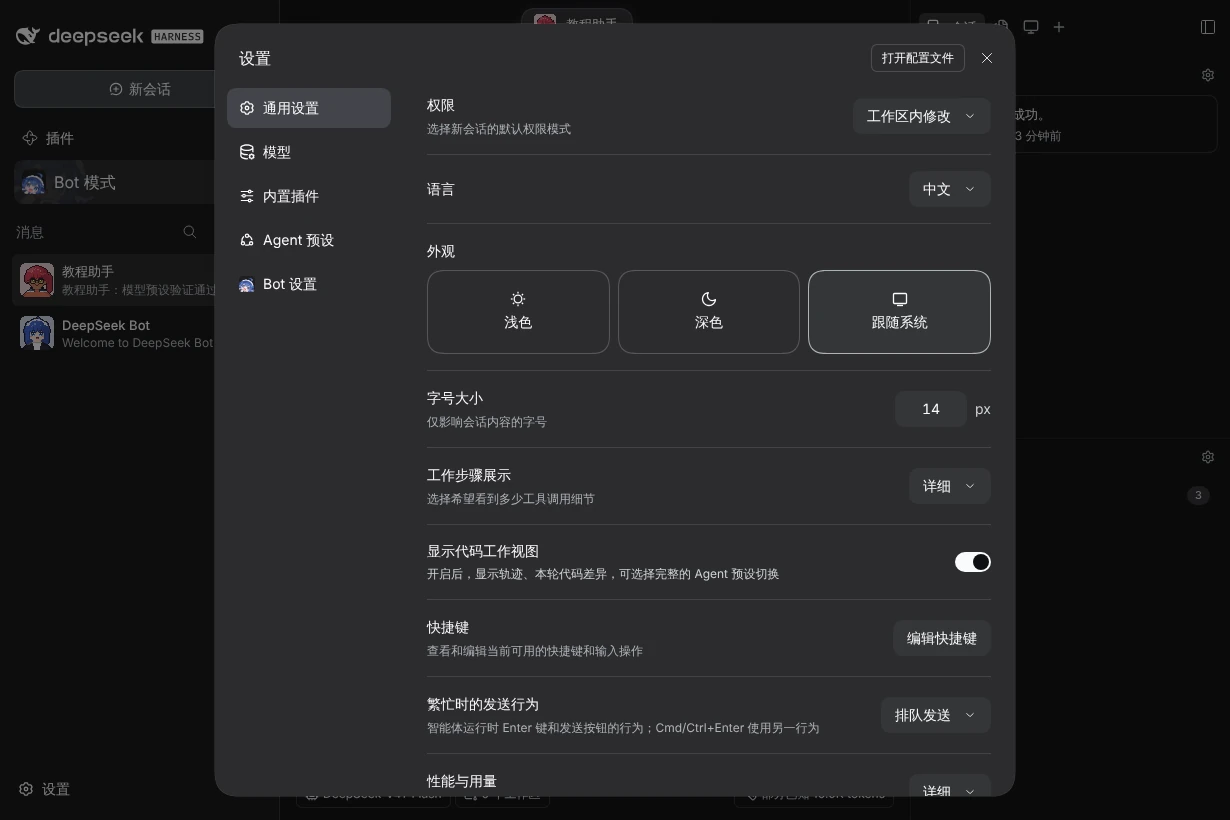
| Field | Options / initial value | Purpose and scope |
|---|---|---|
| Permissions | Read-only / workspace write / full access; initially workspace write | Default for new native sessions. Bot task permissions are configured separately under Workspace grants; this label does not prove an existing task's permissions. |
| Language | Chinese or English; screenshots use Chinese | Interface language. |
| Appearance | Light / dark / system; initially system | Interface theme. |
| Font size | Initially 14 px; increase/decrease buttons | Conversation content font only. |
| Working steps | Concise / standard / detailed / fully expanded; initially detailed | How much tool-call detail is shown; does not grant tool permissions. |
| Performance and usage | Concise / detailed; initially detailed | Detail level for performance and token information. |
| Code working tools | On/off; initially on | Shows traces, current-turn code changes, and Agent preset switching in new conversations. |
| Keyboard shortcuts | Edit shortcuts | View and edit bindings; follow conflict hints, save, or restore defaults. |
| Send behavior while busy | Initially queue; can select steer | Enter / Send behavior while an Agent runs. Cmd/Ctrl+Enter uses the alternative. Separate from a Bot's wake policy. |
| Upload Session Log when using the official model API | On/off; native initial value was on | Whether session logs are uploaded through the official API to improve models and products; choose your preference. |
| Open configuration file | Button | Native entry to the current Profile configuration. Use the relevant forms for everyday changes. |
Agent presets and built-in plugins
Agent presets select native tools and working style. “Set as default for new tasks” applies to subsequent native tasks. Review each preset's configuration, description, and usage instructions first. These are separate from Bot model presets.
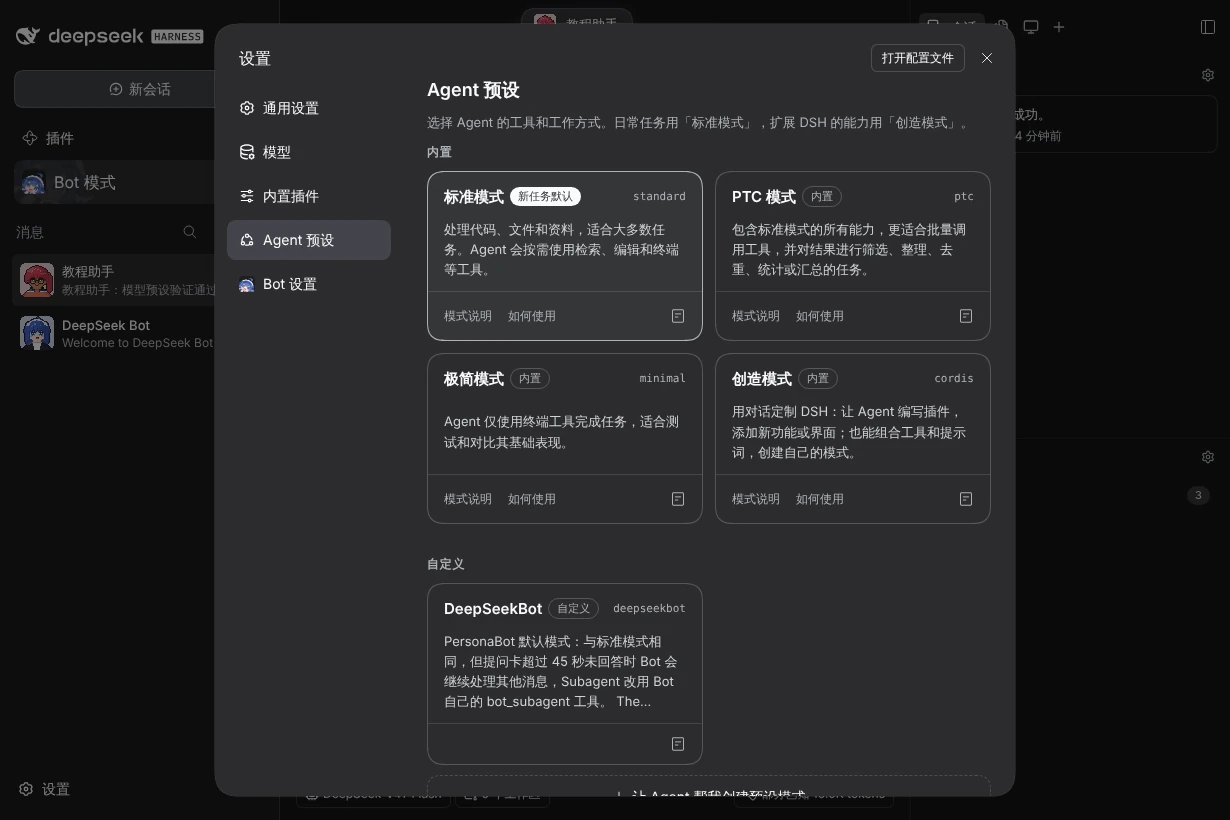
| Preset | Use |
|---|---|
| Standard (initial default) | Most code, file, and research tasks. |
| PTC | Batch tool calls and filtering, deduplicating, counting, or summarizing results. |
| Minimal | Terminal-based tasks; baseline testing and comparison. |
| Creation / Cordis | Write DSH plugins and compose tools/prompts to extend DSH. |
| Custom | Use “Let an Agent help me create a preset”; inspect its configuration and instructions afterward. |
Built-in plugins supports search, Session/Global plugin groups, selection of the Agent preset to inspect, and plugin status/details. Third-party fields depend on each installed plugin and are not all required DeepSeekBot settings. Install/enable packages using Installation. Advanced deployment layers and BotHarness configuration keys are linked at the end of this page.
Global Bot settings
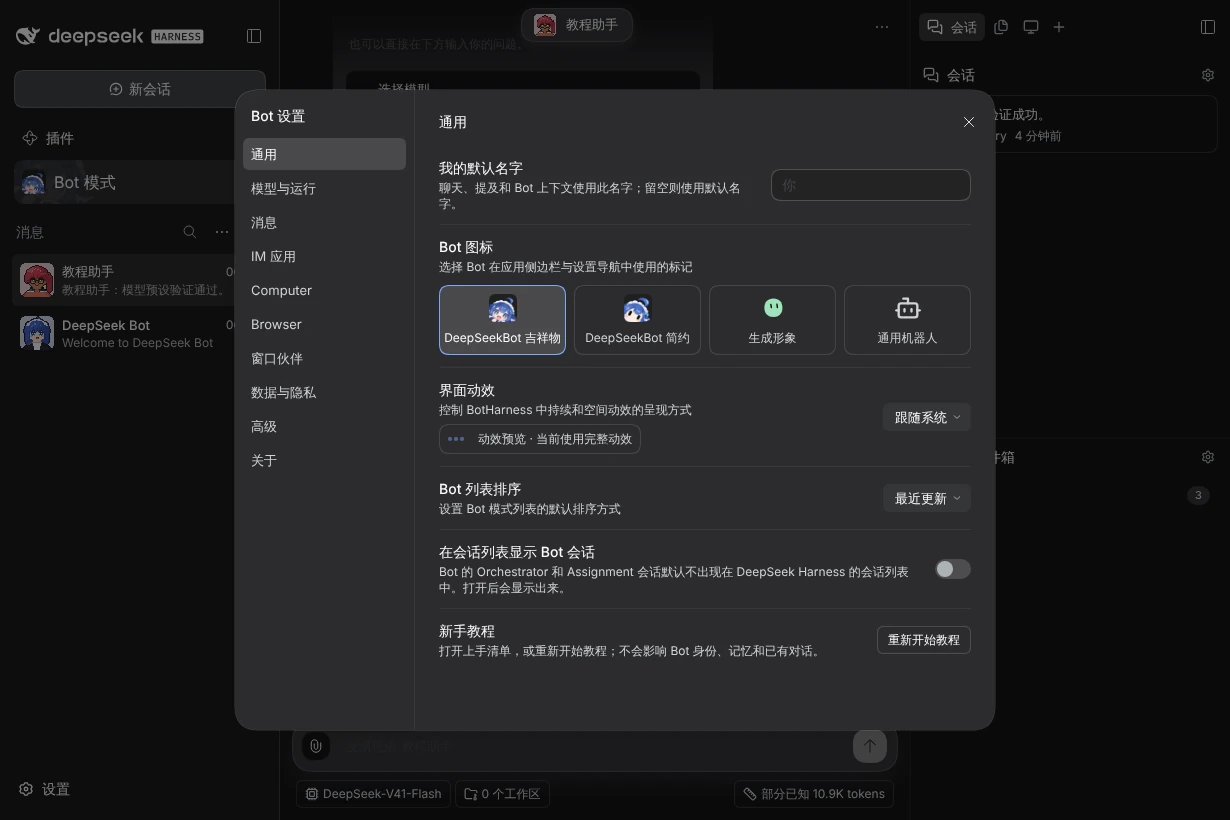
| Field | Default / options | Save and effect |
|---|---|---|
| Bot icon | DeepSeekBot mascot; simple, generated, or generic robot | Click to save. Changes the app/sidebar settings marker, not each Bot's avatar. |
| Motion | System; reduced or full | Selection saves immediately. The preview reports effective motion. |
| Bot list sorting | Recently updated; manual | Default sorting; drag rows for manual order. Pinned areas/sections may have their own sort choice. |
| Developer mode | Off | Shows workspace grant history and advanced options; grants no file access. |
| Auto-accept Group invitations | On | Join invited BotHarness Groups without waking the Bot. When off, the invited Bot decides. Does not configure an IM connection. |
| Assignment concurrency limit | 8; integer 1–32 | Enter and Save. Shared across Bots; limits executing tasks, not historical sessions. Lowering it does not stop running tasks. |
| DeepSeekBot version | Shows the running version | Check for updates queries npm; Update now installs a new release, and on the web Restart now loads it. See Update DeepSeekBot. |
| My default name | Empty → Human; maximum 128 characters | Save name for chat, mentions, and Bot context. Restore default or save empty to return to Human. |
| Anonymous usage statistics | On | Switch saves immediately and applies without a restart; locked off when config or environment disables it. See Anonymous usage statistics. |
The lower “External platform defaults” area belongs to IM intake/identity settings; see Lark / Feishu, Slack, and Discord. Each platform has independent defaults and revisions. Profile identities and group intake policies can inherit these values or retain custom choices; restoring inheritance uses the current platform defaults. Discord ordinary intake still requires Message Content Intent and verified delivery; changing defaults does not grant either.
Appearance and wallpaper
Open Bot settings → Appearance (⌘, on macOS or Ctrl+, elsewhere opens Bot settings in Bot mode). Everything on this page is saved on this device only; the Web client and the Desktop app keep separate copies, and the DSH theme is not changed.
| Field | Options | Effect |
|---|---|---|
| Theme | Light, dark or system | Bot mode's own theme. |
| Palette and Primary | Classic Blue, Mist Purple, Forest Green, Warm Amber; any Primary | Chosen separately for light and dark mode. |
| Panel header / body | Background color, opacity, background blur | Applies to every panel in the current mode. Text and message bubbles keep their own colors. |
| Wallpaper library | Up to 24 images (20 MB each) or silent videos (100 MB each) | Click Add wallpaper or drop several files. Pick one, or None. Adjust crop sets position and zoom. The first wallpaper makes untuned panels see-through. |
| Switch automatically | Off, every 1, 5, 15 or 30 minutes, every hour; Shuffle | Rotates through the library. Videos loop without sound and pause in the background; if playback fails, the saved poster shows with the reason. |
| Appearance recovery | Clear panel settings, Restore defaults… | Clear removes per-panel settings in the current mode. Restore defaults asks first, then resets both modes and empties the wallpaper library. Bots, data and layout are not affected. |
To style one panel, open its header menu → Appearance settings. Each field can follow the global value or be set for that panel, and Reset this panel removes its own settings. The deepseekbot appearance and wallpaper commands target one open Client; see the CLI guide.
Context compaction
A Bot's main session (its Orchestrator Session) grows with every turn. Compaction replaces the long history with a summary so the next message re-reads less.
- Compact now: type
/compactin the Bot's DM composer, send/compact(or/压缩) in an IM DM, or rundeepseekbot bot-compact <bot-id>. The result shows tokens before and after. It is refused while the Bot is working; stop the turn or wait. - Compact idle conversations early: Bot settings → Models & execution, on by default. When a Bot has been quiet for half of its model's prompt-cache lifetime (never before 15 minutes; DeepSeek models assume 2 hours until observed), the Host compacts the session while the cache is still warm, which costs less than compacting a cold session later. Nothing shows in the chat; each run appears in the Bot's activity. Details and per-model overrides are in the CLI guide.
If a turn still fails because the context is full, the failed-turn notice says so; retry with a smaller request.
Quick search and shortcuts
Press Alt+K (Option+K on macOS) in Bot mode to search Bots, groups, Channels and individual Bot settings rows; Ctrl+K or ⌘K also works where the browser passes it through. Chinese names match by full pinyin or initials. Choosing a settings result opens its page with the row highlighted. Press ? or Ctrl/⌘+/ for the full shortcut list, and change shortcuts in Bot settings → Keyboard shortcuts.
Create a Bot and edit its Profile
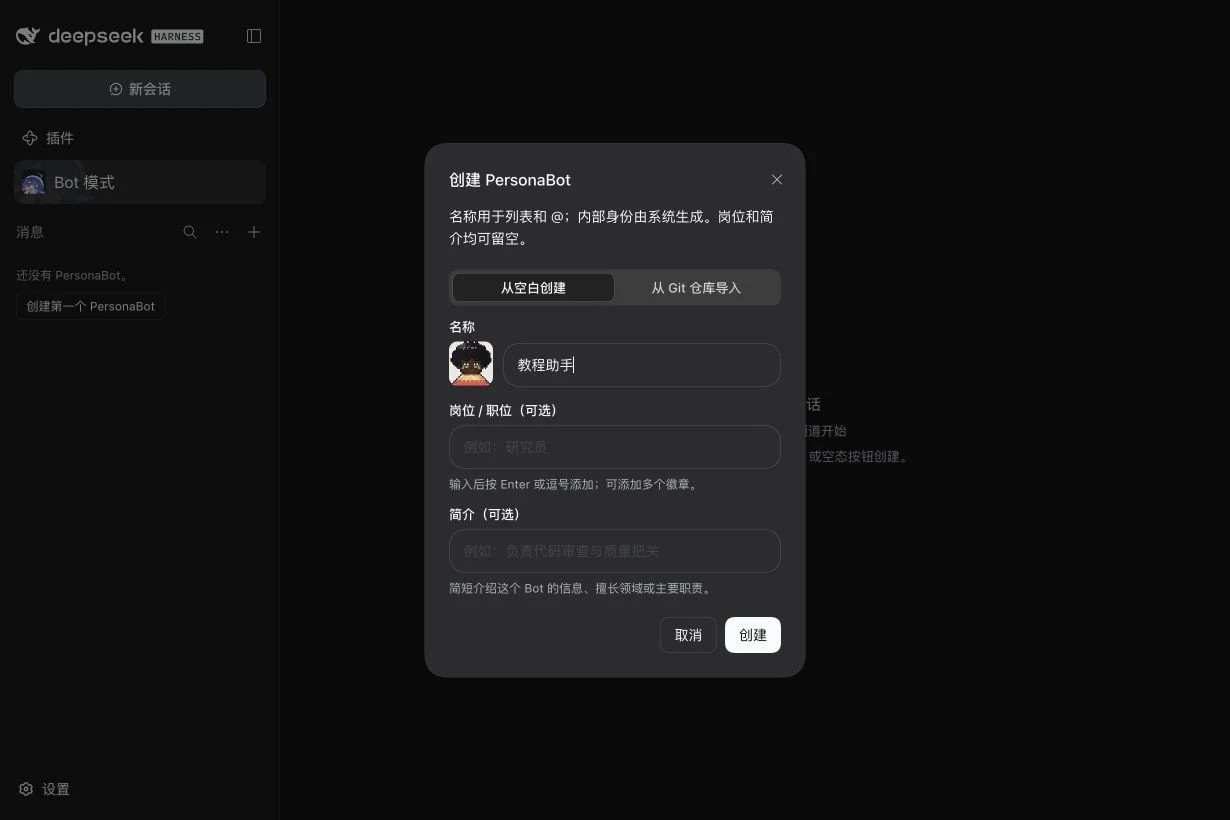
Use “Create your first PersonaBot” in Bot mode or the list's New menu.
| Field | Configuration |
|---|---|
| Source | Empty creates a new Memory Repository. Git import takes an accessible Git URL and uses that repository rather than showing blank-persona templates. |
| Name | Required display name; rename later using the edit button beside the Profile name. |
| Roles | Optional badges; Enter/comma confirms a badge and its close button removes it. Badges do not grant capabilities. |
| About | Optional short introduction shown in the Profile. |
| Persona template | Blank / colleague / roleplay seed for the creation text. |
| Persona | Editable identity and communication instructions at creation; not model, API, or permission configuration. |
After creation, open View details:
- Change avatar: choose PNG, JPEG, or WebP; adjust the crop and save. An uploaded avatar can be removed.
- Design avatar: choose illustrated/line style, presets, parts, shape sliders, and colors. Save applies the preview; cancel discards the draft. An uploaded image takes display precedence.
- Activity overview: pins select cards in the Profile popover. Token usage switches between Daily total and By model, with a 7 / 30 / 90 days / All range and a custom range in the ⋯ menu; hover a bar for the cached, uncached input and output split. These only change the statistics view, not the model. Unavailable usage is unknown rather than zero.
- Persona / memory files: use Memory files in the right sidebar to inspect files and their available edit/preview actions. The Profile does not repeat every creation field as an editing form.
- Standing memory limits now live in the Channel sidebar: Bot DM → Memory files → Standing memory limits sets the character limits for
SOUL.mdandMEMORY.md, applied from the next Session or the next compaction of the current Session; see Bot Soul and Core Memory. - External identities and connectors also moved out of the Profile, into the Bot DM's Channel sidebar: see External identities and External connectors.
Bot wake policy and local Groups
A Bot's Wake policy now lives in the Channel sidebar of its DM. Open Bot DM → Channel sidebar → Wake policy, click a source row, choose the rule and Save; Restore default removes that source's change. Wake policy lists every source, option and limit.
Local Groups allow an ordinary-message override for each Bot under Group header → View details. Inherit uses that Bot's default; edits/restoring inheritance are scoped to that Group. Group member controls manage invitations, join requests, and membership. These policies do not change API providers, models, or workspace permissions.
Channel sidebar display settings
The Channel sidebar chapter provides step-by-step feature guides; see Display and layout for tabs, ordering and visibility.
The chat header's ··· menu → Channel settings… opens the chat's Model, Workspace Grants, Wake policy, External identities, External connectors or Group management. Sidebar display options sit in the gear at the right of each section title; they are browser display preferences that do not change durable Bot memory or task authorization.
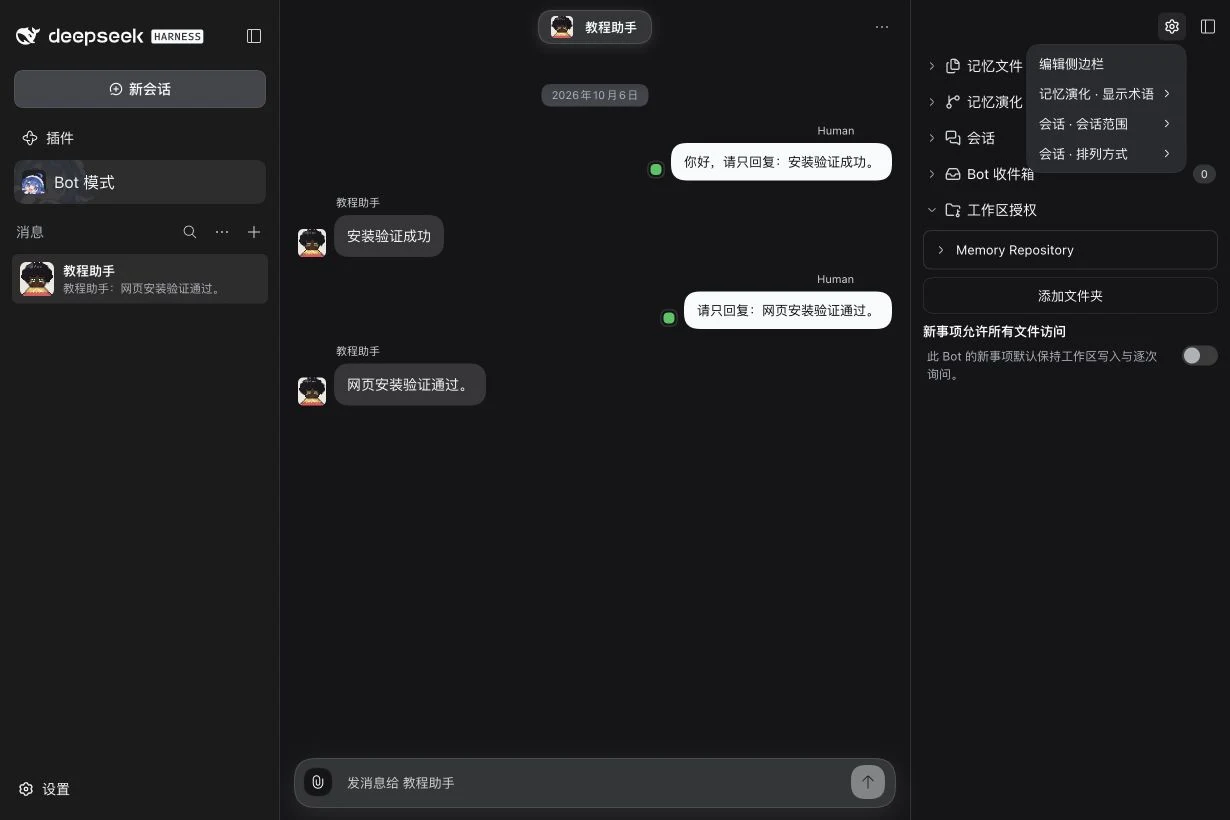
| Field | Default / effect |
|---|---|
| + Views (beside the tabs) | Tick the tabs to show and drag them into order; applies at once. Bot DMs and Groups can use different layouts. |
| Edit sidebar (narrow overlay) | Drag entries into order, select visible entries, then finish. |
| Memory evolution → Terminology | Memory terms by default; Git terms rename the same underlying commit view. |
| Bot Inbox → Show | By time by default; optionally group by source. |
| Sessions → Scope | Current by default; All expands the filter for that Bot's session view. |
| Sessions → Layout | By status (Working / Idle) by default; optionally group by workspace. |
| Sidebar width | 320 px by default; drag the divider within 260–560 px. The selected tab, split heights and expanded states are retained too. |
Workspace grants and task permissions
Open Workspace grants in the target Bot DM's Channel settings (header ··· menu → Channel settings…). Memory Repository is its memory directory. Use Add folder to choose extra task folders on the DSH Host; a remote browser does not substitute its own local paths.
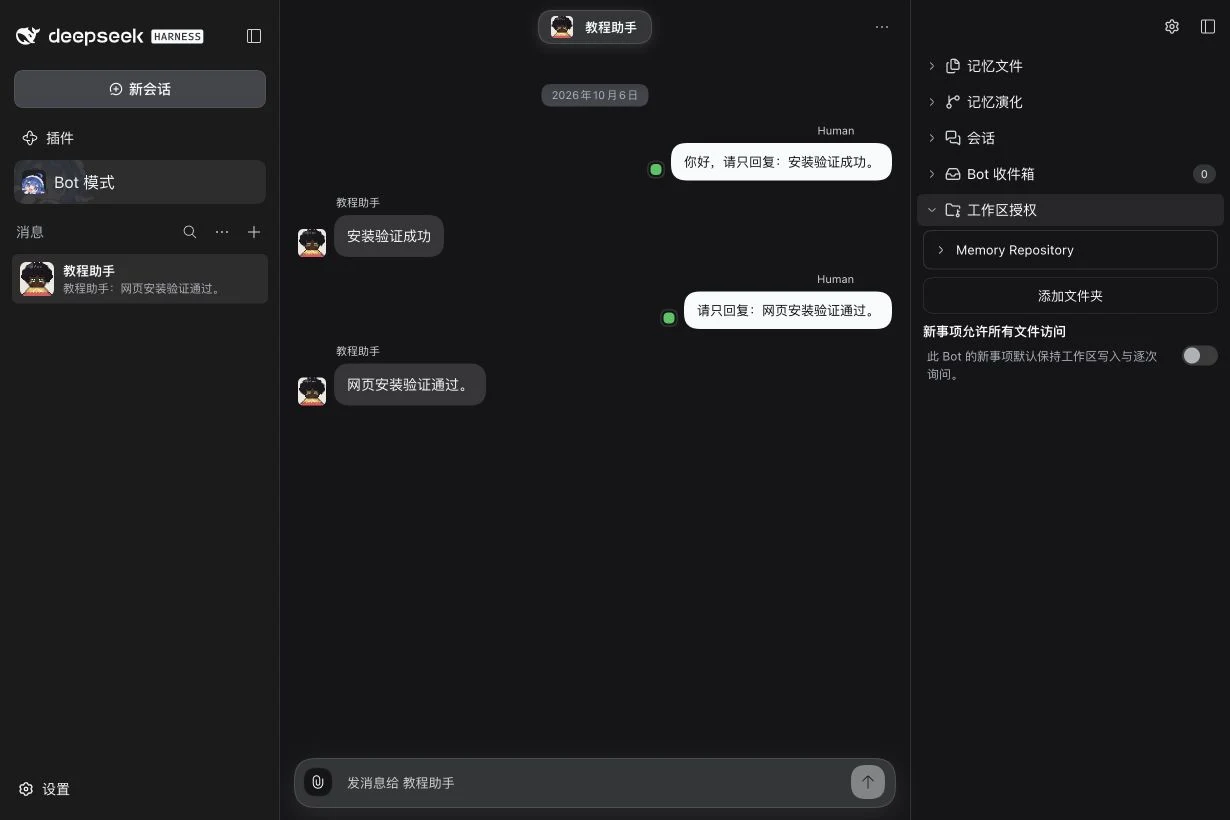
| Field / action | Effect and scope |
|---|---|
| Add folder | Choose and confirm a task directory this Bot may use. Grants are managed separately for each Bot. |
| Revoke/remove directory | Revoke its authorization for subsequent work; does not delete the directory's files. |
| Allow all file access for new work | Off by default: new Assignments use workspace write and ask for approvals. Enabling requires explicit confirmation and applies full file access to new tasks, not existing permission snapshots. |
| Tool approval rules | The actual prompt offers one-time approval, remembered exact operations, or broader rules. Inspect Bot, role, directory, and operation scope before confirming. Existing rules can be inspected and revoked. |
| Developer-mode history/advanced options | Inspect revoked grants and history. Showing them does not restore authorization. |
For a first task, choose one specific directory, retain default permissions, and verify an actual task. Model choice, directory authorization, and task permissions are separate settings.
Anonymous usage statistics
DeepSeekBot sends anonymous usage statistics from the DSH Host by default; Bot mode explains this once in a notice the first time it opens. Events are tied only to a random install ID stored in $DSH_HOME/botharness/telemetry.json:
plugin_started: plugin version, DSH version, operating system and architecture.bot_created,bot_archived,bot_deleted,marketplace_bot_installedandavatar_edited: only that the action happened.connector_enabled: only the connector type (feishu,lark,slack,discord,weixinorother).- First-entry intro and tutorial:
intro_shown;intro_step_viewed(step name);intro_dismissed(step and whether Skip or Close was used);intro_completed(which starter prompt was picked, not its text);intro_theme_changed(onlyscheme,presetorwallpaper);intro_model_saved(only whether the Advanced task model was used);intro_community_clicked(github,discordorqq); andtutorial_action(start,pause,skip,continue,restartorfinish). No model names, wallpaper files or typed text are included. daily_usage: at most once a day, the number of PersonaBots, the number of new Sessions and messages since the previous summary, and that window's length in whole hours. No event is sent per message.$exception: when the Host hits an unhandled error in BotHarness code, the error type and its stack's functions and line numbers, with each file reduced to its package-relative name (such as@botharness/core/dist/index.mjs) or just its file name. Errors without a BotHarness frame are dropped. The report is saved on the device and sent on the next start; the error message is never included.
Names, Persona or Memory content, conversations, prompts, tool arguments, repository URLs, connector accounts or workspaces, your file paths, credentials and IP addresses are never sent. To turn it off, open Bot settings and switch off Anonymous usage statistics; it takes effect at once without a restart, queued events are dropped, and the choice is saved in the same telemetry.json so it survives restarts. Switching it back on resumes without a restart. Deployments can force it off with telemetry: false on the BotHarness core plugin (see Advanced parameters below) or by starting DSH with DO_NOT_TRACK=1 or BOTHARNESS_TELEMETRY=0; the switch is then shown off and disabled with a note naming the setting. Details: privacy and source.
Advanced parameters and optional capabilities
The public npm package deepseekbot bundles Core, Client, Browser, Computer, and the qualified IM Provider; IM accounts start disconnected and per-Bot Browser/Computer Access stays off until you enable it for a Bot. The generated Core configuration reference covers enabled, agentPreset (session tool preset, default standard), activityDetailConsumers (trusted Host plugins allowed to read activity details, initially empty), and telemetry (anonymous usage statistics, default on). Browser target, driver, path, headless, and idle-stop fields are defined in Browser configuration; Computer target, desktop resources, export directory, and action authorization fields are defined in Computer configuration. Operational guides cover daily browser sharing and Computer export/transfer.
Check the installed version, then inspect the relevant plugin under Settings → Built-in plugins for its details/parameters. Deployment fields without a form are configured through Profile/Patch layers as described by the official DSH documentation. The website's development reference can be newer than the npm release; optional capabilities there are not a claim about what this package includes.