
Docs
Bot Inbox
Inspect a Bot’s received items, their processing state and their original source.
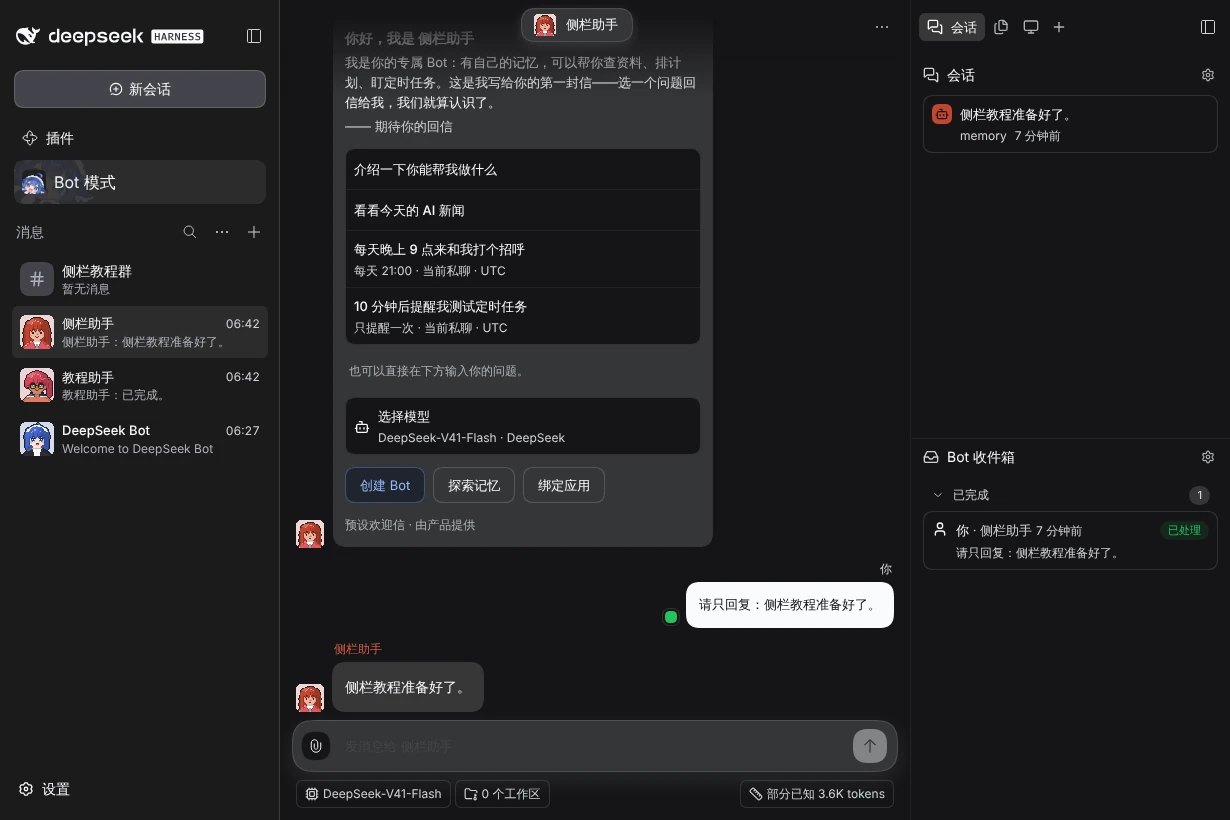
Open Bot DM → Channel sidebar → Bot Inbox. This is the selected Bot’s received-source view, including Channel messages and Assignment reports. It differs from Activity center / Human Inbox, where you handle requests addressed to you.
Inspect an item
- Expand Bot Inbox. By default every item is listed newest first.
- Each card shows who it came from and when on the first line, with the processing state at the top right, and up to two lines of content below.
- Click an available source item: Channel messages open the original chat around the message; Assignment reports open the corresponding Session; external items open a source-detail view.
- Use Load more when offered.
To group items by where they came from, click the gear in the Bot Inbox title and choose Show → By source. Groups can represent a Channel, a task or an external conversation; a group opens on its own when it has unhandled items. The choice is remembered in this browser.
Read the states correctly
| State | How to read it |
|---|---|
| Pending | Received and awaiting handling. |
| Observed | Recorded as viewed by the Bot. |
| Processing | The Bot is handling it. |
| Deferred | Handling was deferred. |
| Needs repair | The processing path needs attention. |
| Handled / Ignored | Historical items, listed with the rest by time. |
The header count excludes handled and ignored records in the loaded view. It is not a count of unread messages for the Human. Opening a source to inspect it is not a manual instruction to mark it handled, and a delivery badge is not proof that the Bot completed your request.
Assignment report labels such as Progress, Completed, Blocked, Waiting for you and Failed describe the report. A Memory-change item is informational and is not a link to a Channel message. Source unavailable means the original source cannot currently be opened.
When the Inbox is quiet
No records can mean the entry is absent. If it is hidden, restore it in Display and layout. If a message arrived but did not wake the Bot, review the Bot’s source attention settings in Settings guide; collection, wake policy and successful model handling are separate checks.
For a request asking you to answer or approve a tool, use its actual action card or Activity center. The Bot Inbox sidebar does not replace Human approval. External connection setup remains in the Lark and Slack guides.
Related: Sessions, sidebar overview.