
Docs
Sessions
Open a Bot’s owned DSH Sessions and choose the list scope and layout.
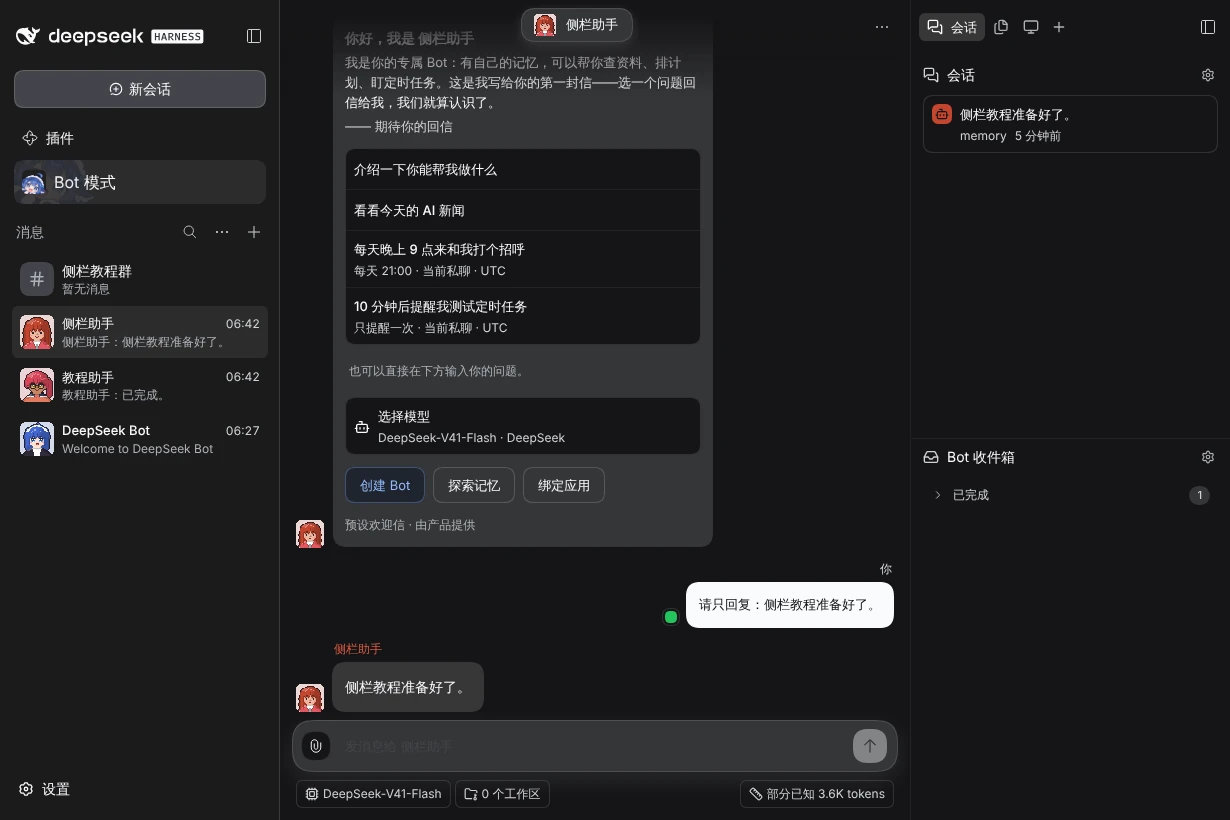
Open Bot DM → Channel sidebar → Sessions. The list contains this PersonaBot’s owned DSH Sessions. A Channel chat is the shared message surface; a Session shows the model execution and tools behind it.
Open and return
- Expand Sessions and choose a row.
- DSH opens the native Session. Inspect its conversation, trajectory, tool results, model selector and permission controls there.
- Click the Bot-labelled Back to … control in the native header to return to the Bot chat.
| Information | Meaning |
|---|---|
| Orchestrator | The Bot’s dialogue and coordination Session. Always at the top; its icon is filled with the Bot’s primary color. |
| Assignment | A task execution Session owned by this Bot; its working directory and permissions belong to that task. |
| Running / Stopping / Stopped | Execution or stop lifecycle state. |
| Idle | The native Session exists and is not currently running; it is not proof that the overall task is complete. |
| Needs attention | An Assignment has reported an error state; open it to inspect the cause. |
| Session unavailable | The native Session is absent from the current catalog; the row cannot be opened. |
| Full-access marker, when present | That Assignment’s stored permission choice; review its actual Session before drawing conclusions about another task. |
In the default layout the Orchestrator sits on top, then Assignments split into Working (running, stopping or needing attention) and Idle. Both sections collapse and remember it per Bot, list the most recently updated Session first, and rows slide to their new place when a Session changes state. A status label appears at the top right only when it adds something to the section, for example Needs attention under Working.
Select the scope and layout
Use the gear in the Sessions title:
- Session view → Current keeps the latest Orchestrator, running/stopping work, attention states and certain unresolved working Sessions. It can hide finished historical Assignments.
- Session view → All includes historical owned Sessions; it still does not list unrelated Bots’ Sessions.
- Layout → By status is the default described above.
- Layout → By workspace groups by working directory. Expand a group to see its rows; a group count is a Session count.
These settings change the list presentation. They do not move a Session, grant a folder, stop an Agent or change a model. If a task seems missing, try All and check that you opened the intended Bot.
The same menu shows the settings that shape new Sessions:
- Model lists this Bot’s Main model and Task model with their reasoning effort. Click either to open Channel settings → Model and change them.
- Assignment concurrency limit shows how many tasks may run at once. Click it to change the limit (1–32). The limit is shared by all Bots; lowering it does not stop running work.
For choosing future Bot/task models, use API and Bot models; for file access, use Workspace Grants. Sidebar overview.