
Docs
Channel sidebar
Find the tools beside a Bot chat or group, then open the matching feature guide.
The Channel sidebar is the right-hand column in Bot mode. It follows the selected chat: a PersonaBot DM shows that Bot’s own resources; a local group shows the group’s members. Configuration for the chat lives in Channel settings. Opening a native DSH Session takes you to a different, Session-scoped interface.
These pages apply to the public deepseekbot package on DSH 0.2.1-rc.2 (screenshots were captured on DSH 0.2.0-rc.1). First complete installation and API and Bot model setup.
Open the sidebar
- Enter Bot mode and open a Bot DM or a local group in the left roster.
- If the right column is closed, click Expand the Channel sidebar at the right edge.
- On a wide window, click a tab at the top of the sidebar: Sessions (Sessions and Bot Inbox), Memory (Memory files and Memory evolution), Screen (Computer and Browser, when those plugins are installed), and one tab for each other entry. Hover an icon for its name. In a narrow window the sidebar is an overlay of collapsible entries; click an entry’s title to expand or collapse it.
- Switch chats to inspect the resources for that Bot or group. Check the chat header before using an action.
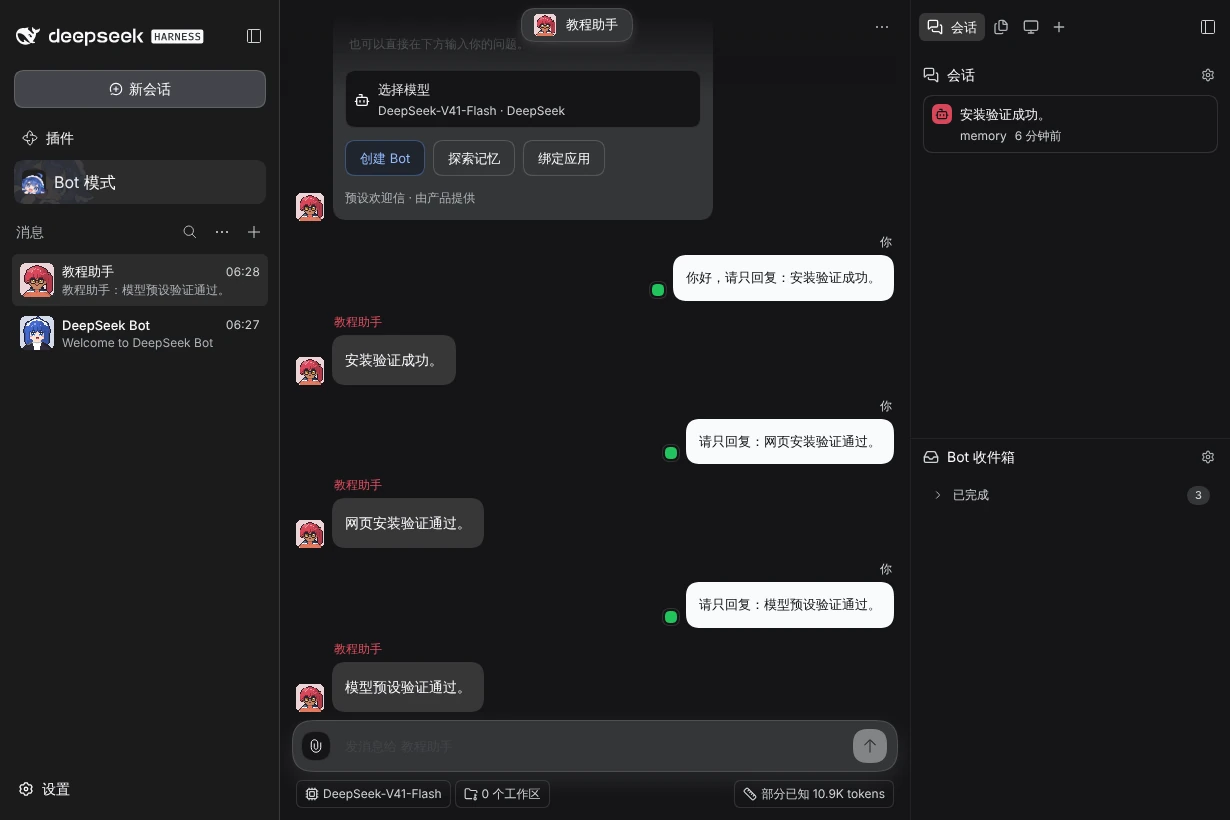
Choose a feature
| In a Bot DM | What you can do |
|---|---|
| Memory files | Browse the current repository tree and read a file in the center. |
| Memory evolution | Inspect uncommitted changes, Git history, branches and recovery checkpoints. |
| Sessions | Open this Bot’s Orchestrator and Assignment Sessions in DSH. |
| Bot Inbox | Inspect source messages and Assignment reports that the Bot has received. |
| Workspace Grants ¹ | Review and explicitly authorize the Host folders available to this Bot. |
| Schedules | Wake this Bot on a cadence, run a schedule now, and lock it from Bot edits. |
| Model ¹ | Check and change the models this Bot uses for chat and new Assignments. |
| Wake policy ¹ | Choose, per source, whether this Bot wakes right away, after a digest, or not. |
| External identities ¹ | Bind who this Bot speaks as on Lark / Feishu, Slack or WeChat; IM pairing and approval notifications. |
| External connectors ¹ | Edit and pause conversations synced into a Channel; advanced saved send targets. |
| Secrets ¹ | See, replace and remove the API keys and other secrets this Bot asked you for, without showing values. |
| In a local group | What you can do |
|---|---|
| Work | See the Assignments this group asked for and open their Sessions. |
| Members and group management ¹ | Inspect members, invite a Bot, handle join requests and edit the group. |
| Wake policy ¹ | Choose, per member Bot, how ordinary messages in this group wake it. |
| External connectors ¹ | Connect, edit and pause external conversations synced into this group. |
¹ A Channel settings section, not a sidebar entry. Open it from the chat header’s ··· menu → Channel settings…. In a group, Members stays in the sidebar; Group management is in Channel settings.
Display and layout explains width, tabs, the Views menu, visibility and feature-specific display options. Settings guide covers the rest of the non-IM settings.
Why an entry may be missing
Bot-only entries do not appear in a group; group management does not appear in a Bot DM. The Bot Inbox entry is conditional on having records or a loading/error state. Schedules is hidden by default; turn it on in the + Views menu. A tab may also be hidden there (or an entry through Edit sidebar in the narrow overlay). Model, Workspace Grants, Wake policy, External identities, External connectors and Group management are in Channel settings, not the sidebar.
Optional plugins (such as @botharness/vrm-companion) can contribute further entries. The public deepseekbot npm package bundles Browser and Computer (@botharness/browser and @botharness/computer), while per-Bot Browser and Computer access stays off until enabled; follow Share a browser tab or Computer export and migration for their separate driver/container prerequisites and procedures. Connecting an IM application is a separate setup flow; after that, External identities and External connectors manage this Bot’s use of it.