
Docs
Install Tobs
Install the Tobs plugin in DSH, enable Bot mode, and create your first PersonaBot.
Current stable release: 1.6.0. The instructions and package commands below reflect 1.6.0. Some screenshots show earlier UI versions; follow the package spec and steps in the text.
This guide walks you through installing the Tobs plugin in DeepSeek Harness (DSH), enabling Bot mode, and creating your first PersonaBot. Installing this single package brings in the core runtime, web client, and messaging provider together.
Install the stable npm package @botharness/tobs@1.6.0. We recommend DSH 0.2.1-rc.3 (also compatible with 0.2.0-rc.2 and 0.2.1-rc.2). Before upgrading an existing installation, back up your Profile directory in case you ever want to roll back to an older version.
New installations use the @botharness/tobs package and the tobs command. If you are upgrading from deepseekbot, you can keep your existing deepseekbot setup and command—do not delete your Profiles, device pairings, or chats. Both packages share the same underlying components.
1. Open Plugins
Start DSH and open its Web interface. If you haven't installed DSH yet, follow the official DSH getting-started guide. You can also configure a model provider first using API and Bot model setup, and then assign models to your Bot under Model in its Channel sidebar.
Click Plugins (插件) in the left sidebar, then click Add plugin (添加插件).
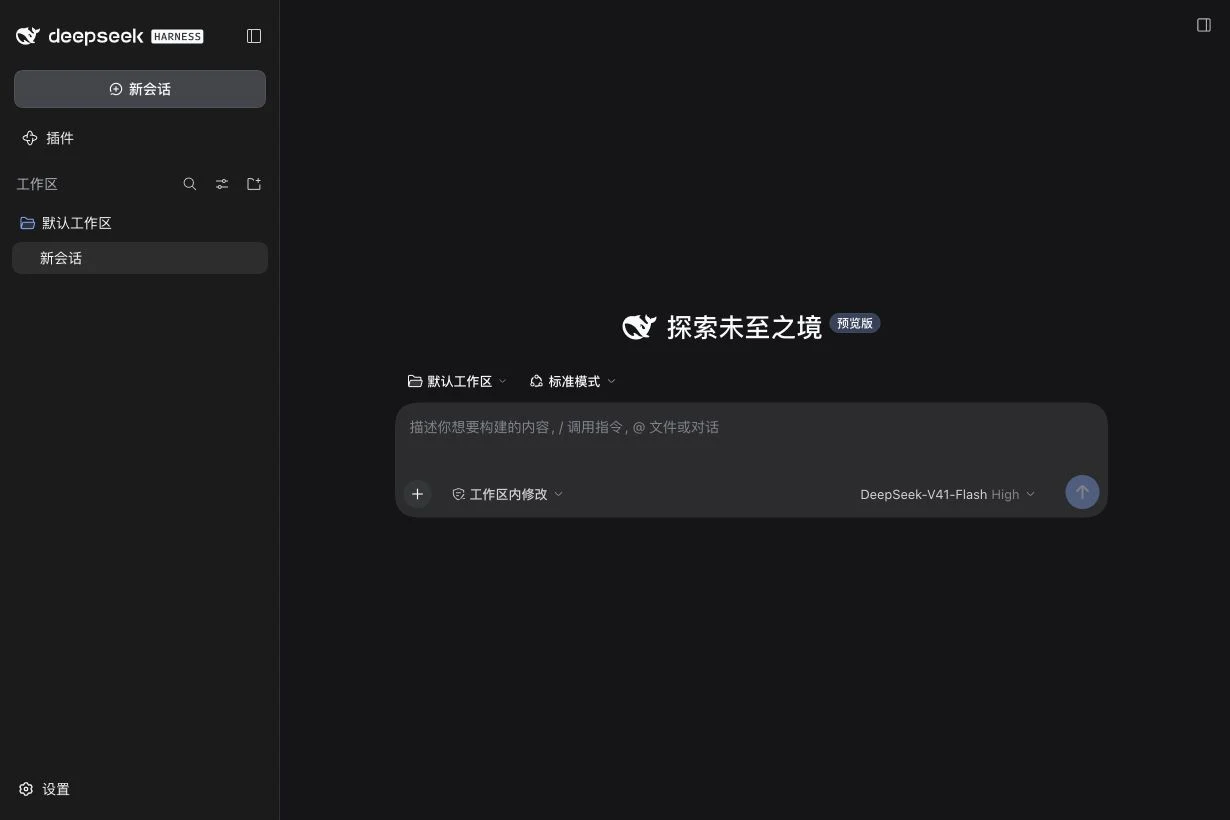
2. Enter the package name and version
Paste this exact package specification into Package name or address (包名或地址):
@botharness/tobs@1.6.0
Keep npm official registry (npm 官方源) selected as the installation source and click Install (安装). Wait for the installation task to finish.
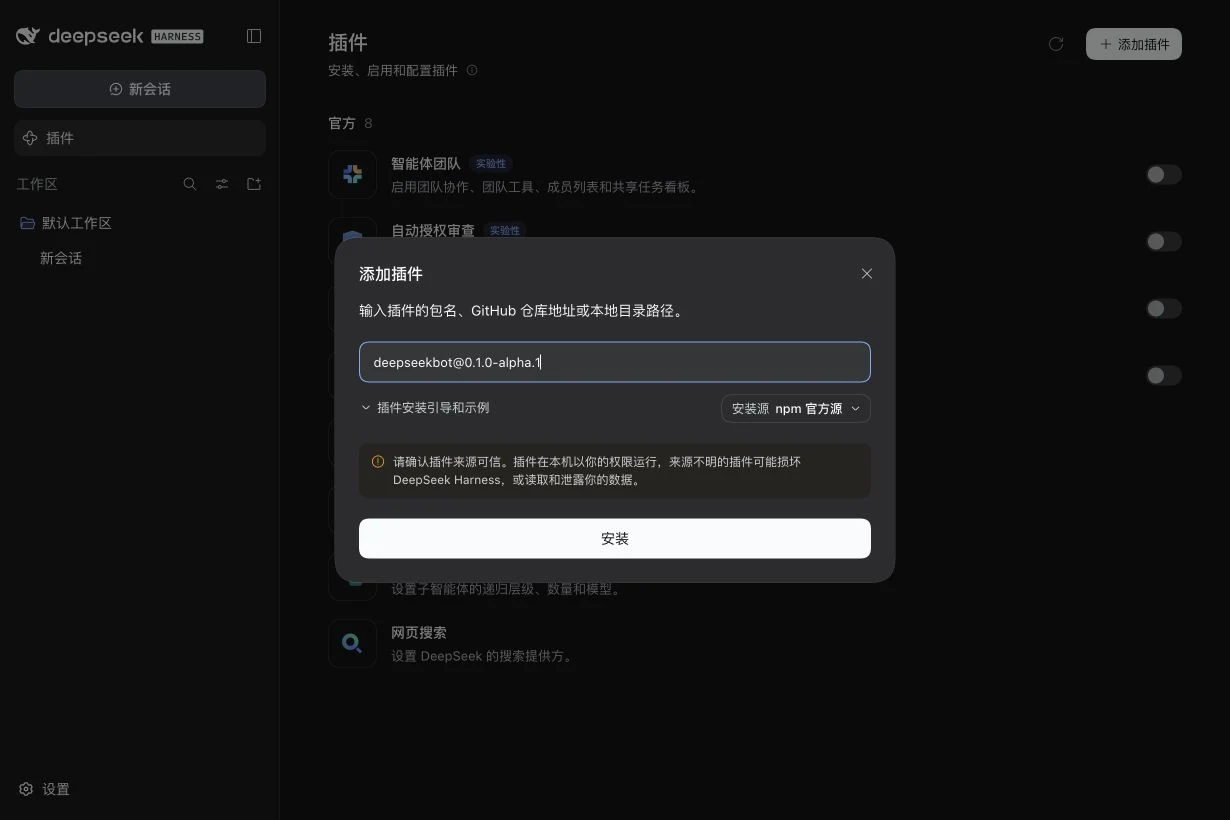
Note: The screenshots show an earlier version for visual reference; always enter @botharness/tobs@1.6.0 as shown above.
Why pinning the version matters
Always include the explicit version (@botharness/tobs@1.6.0) when installing. Package managers with release-age policies (such as pnpm's default 24-hour window for brand-new releases) may otherwise resolve an unpinned package name to an older release that expects a different DSH version.
If you are installing into an existing Desktop Profile from the command line, quit the Desktop app completely before running dsh plugin --profile desktop add @botharness/tobs@1.6.0, then relaunch the app. Keep your existing Profile data intact—there is no need to delete your Profile to retry an install.
3. Enable the installed plugin
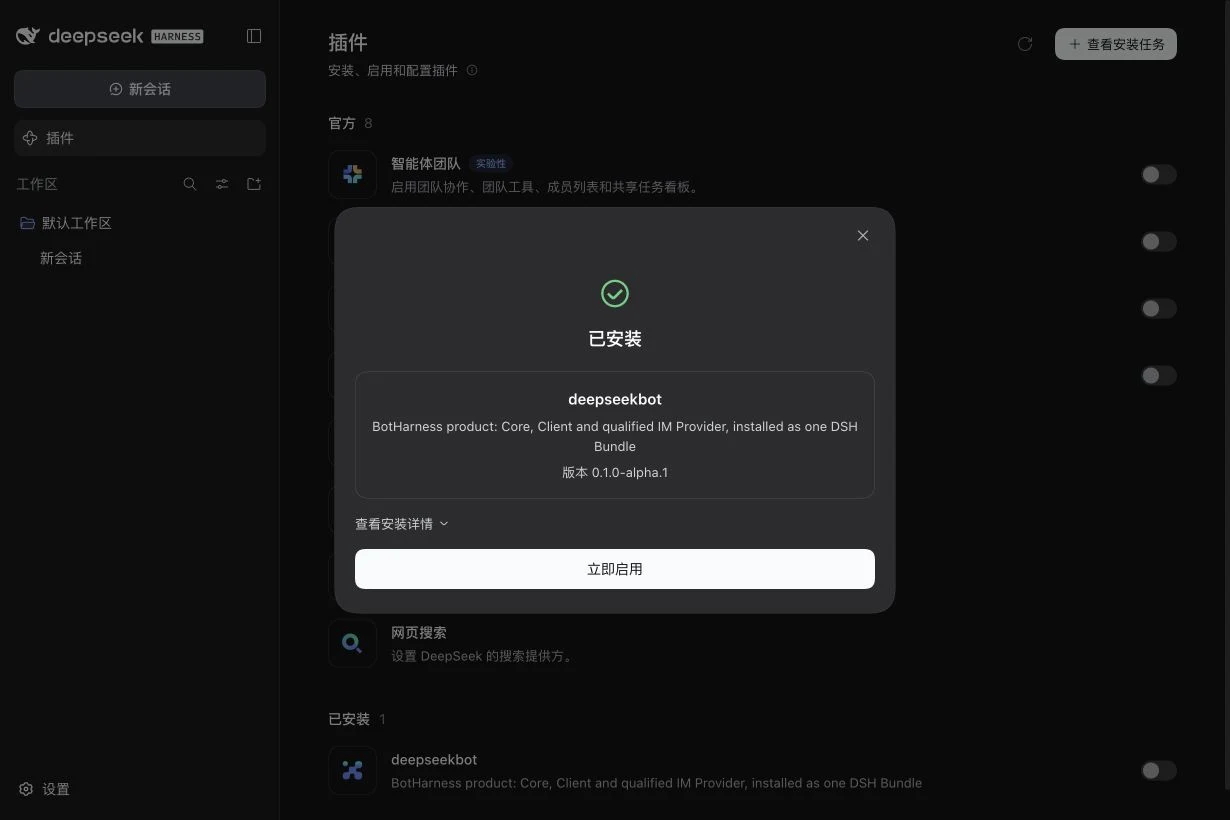
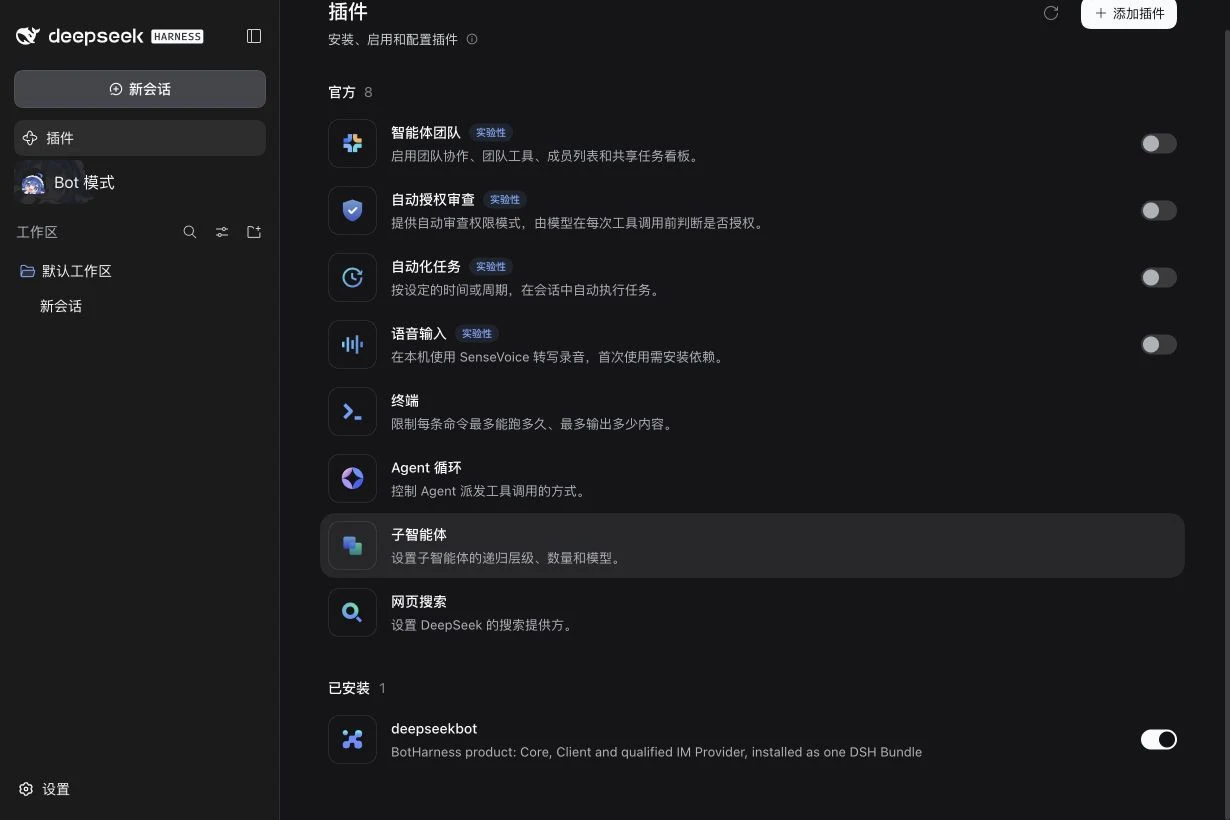
Once the task finishes, it displays Installed (已安装) along with the package name and version. Click Enable now (立即启用). If you already closed the dialog, you can turn on Enable @botharness/tobs (启用 @botharness/tobs) directly from the Plugins list.
Once enabled, Bot mode (Bot 模式) appears in the left sidebar. If DSH prompts you to restart, restart the current DSH Profile and reload the page.
4. Complete Home onboarding
Open Bot mode, select a model in Home, and send a request to Tob (the built-in assistant) to create your first Bot and group chat. At the end of onboarding, pick a layout mode (Simple is selected by default):
- In Simple mode, click Messages on the left control rail to open your chats.
- In Advanced mode, click the Home header at the top to close the onboarding view and return to your DM with Tob.
Newly created Bots wait for you to speak first rather than sending an automatic welcome message. Send a quick greeting to confirm your model is configured and responding. See API and Bot models and the Settings guide for more on configuring models, concurrency, personas, and workspace access.
5. Connect a messaging app (optional)
Fresh installations start with no external messaging accounts connected. Once your Bot replies in a local DM, visit Connections and optional tools to connect Lark / Feishu, QQ, personal WeChat, Slack, or Discord under External identities in the Bot's DM sidebar.
Git requirements
Because every Bot's memory is backed by a Git repository, Bot mode requires Git 2.28 or newer on the computer running DSH. If Git is missing or outdated, Bot mode displays a banner at the top of the sidebar and pauses creating or importing Bots until Git is available.
The easiest fix is to click Install Git right in that banner. It downloads a portable Git (~65 MB) into the DSH data directory, verifies its checksum, and activates it immediately—no administrator privileges required, and your system environment remains untouched. If you install a system Git later, DSH will automatically prefer your system Git on its next startup.
If you prefer to install Git yourself:
- macOS: run
xcode-select --installin Terminal, or install via Homebrew (brew install git). - Windows: install Git for Windows with the default options.
- Linux: install
gitwith your distro's package manager (e.g.,sudo apt install git; on Ubuntu 20.04, use the git-core PPA to get a newer release).
After installing Git manually, restart DSH and click Check again in Bot mode. You can check which Git binary is active at any time under Bot settings → Git.
When importing a Bot from a standard SSH repository URL such as git@github.com:owner/repo.git on a machine without a matching SSH key, Bot mode automatically retries once over HTTPS and lets you know it switched.
Other installation methods (CLI and offline archive)
You can also install the plugin into a specific DSH Profile from the command line:
dsh plugin --profile <your-profile> add @botharness/tobs@1.6.0
Make sure to specify the Profile you actually run, then enable the plugin on that Profile's Plugins page.
To install from a local archive, download the prebuilt tarball with npm pack @botharness/tobs@1.6.0, which saves botharness-tobs-<version>.tgz in the current directory. You can then paste its absolute path on the machine running DSH into Package name or address in the Web UI, or install it via the CLI:
dsh plugin --profile <your-profile> add ./botharness-tobs-<version>.tgz
Troubleshooting
| What you see | How to fix it |
|---|---|
| Plugin is incompatible with this DSH | Make sure you are on DSH 0.2.0-rc.2, 0.2.1-rc.2, or 0.2.1-rc.3 and installing @botharness/tobs@1.6.0. |
| Package or version not found | Double-check the spelling and version number, ensure npm official registry is selected, and try again. |
| Installed, but Bot mode is missing | Enable @botharness/tobs in your current Profile's Plugins list; restart DSH if prompted and reload the page. |
| Bot mode opens, but the Bot doesn't reply | Verify your model provider credentials in Settings → Models and check the Bot's selected model in its sidebar. |
| IM accounts list is empty | That's normal on a fresh install—follow the connection guide for your messaging platform to add an account. |
If you want to build from source rather than install the release package, see the repository README.